
How to find DACH companies
Analyse register data, financial metrics and company profiles in the database.

The database gives you a comprehensive overview of companies in Germany, Austria and Switzerland. It supports both targeted research into a single company and broad exploration of entire industries. This makes the feature ideal both for quickly finding individual companies and for building extensive longlists. The following guide explains step by step how to search the database.
Getting started
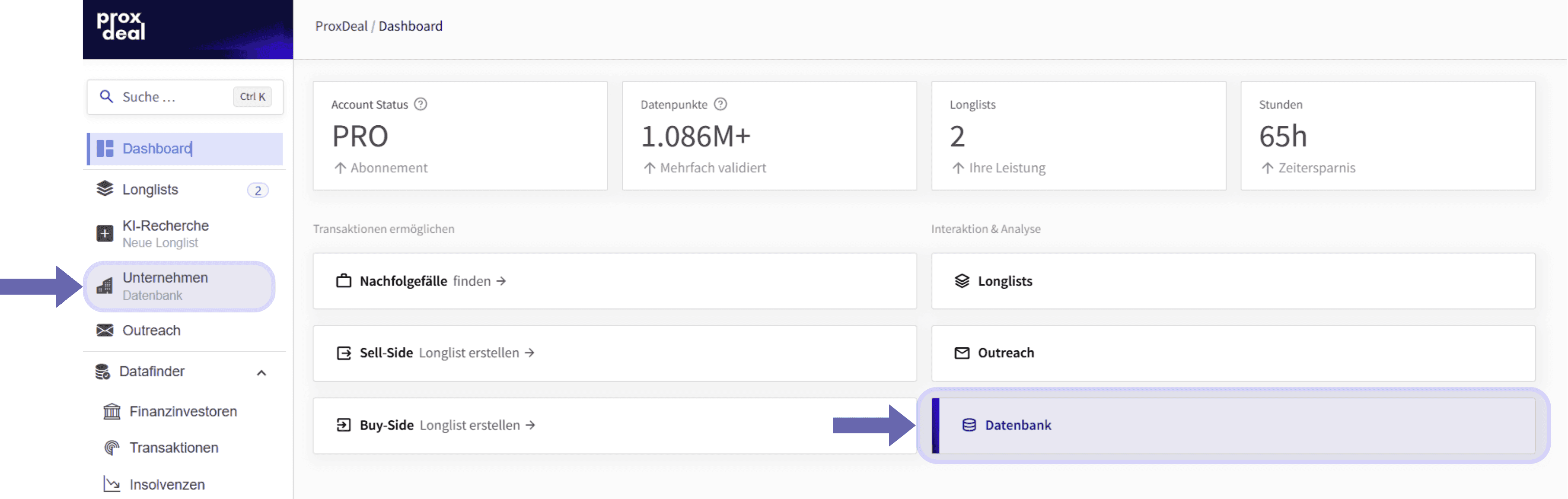
You can open the database directly from the dashboard or via the ‘Companies’ entry in the left-hand sidebar.
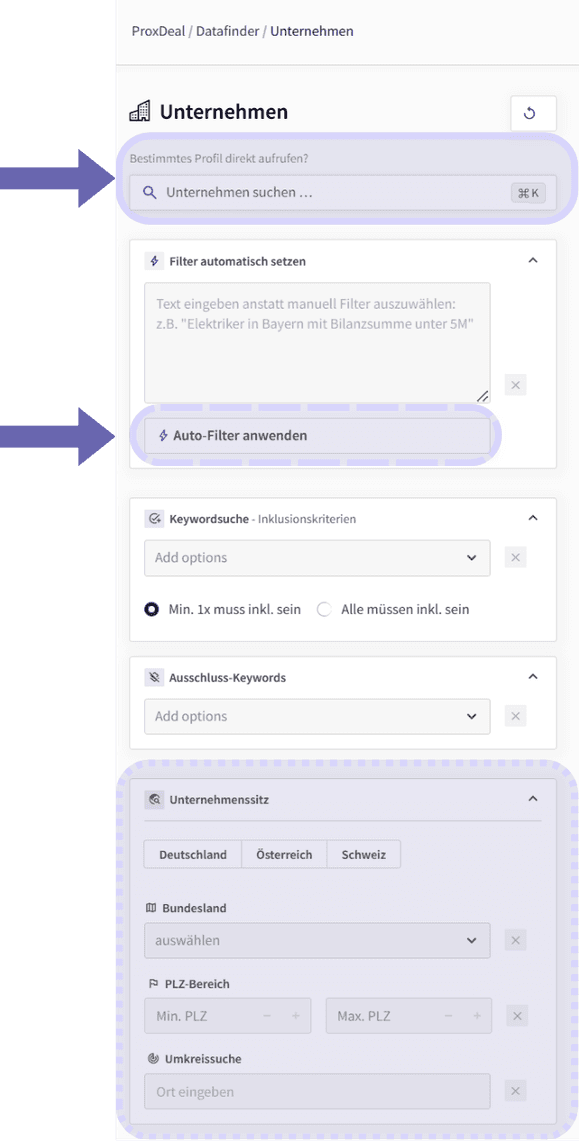
You can start the actual search directly with the company name by entering it in the top search field. Alternatively, the advanced filter settings let you search company descriptions and industry labels. This means you can also find companies whose names you do not know but which match your criteria by topic or industry.
The fastest option is the ‘Set filters automatically’ function. Instead of selecting the many filters one by one, you can enter free text such as ‘electricians in Bavaria with total assets under €5m’. Clicking ‘Apply auto-filter’ then transfers your input to the corresponding filters automatically. In addition, a keyword search with inclusion and exclusion criteria is available, each of which can hold several terms. For the inclusion criteria, you can also specify whether at least one of the terms must be present or whether all of them must match.
Filters in detail
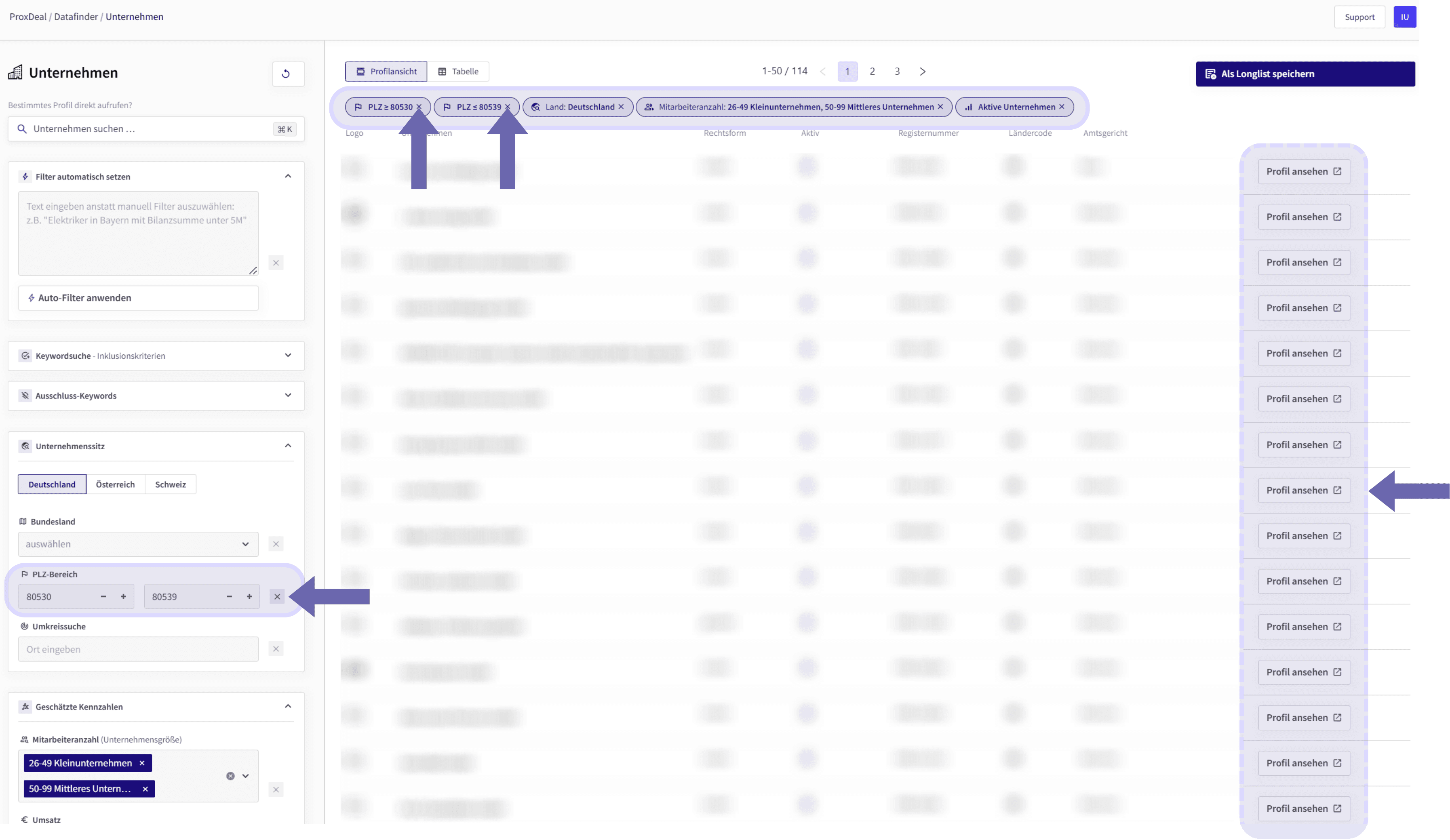
In the ‘Company headquarters’ section, you can first narrow down your search geographically. You can select the country – Germany, Austria or Switzerland – as well as the relevant federal state or canton. You can also define a postcode range with a minimum and maximum value or run a radius search around any location of your choice.
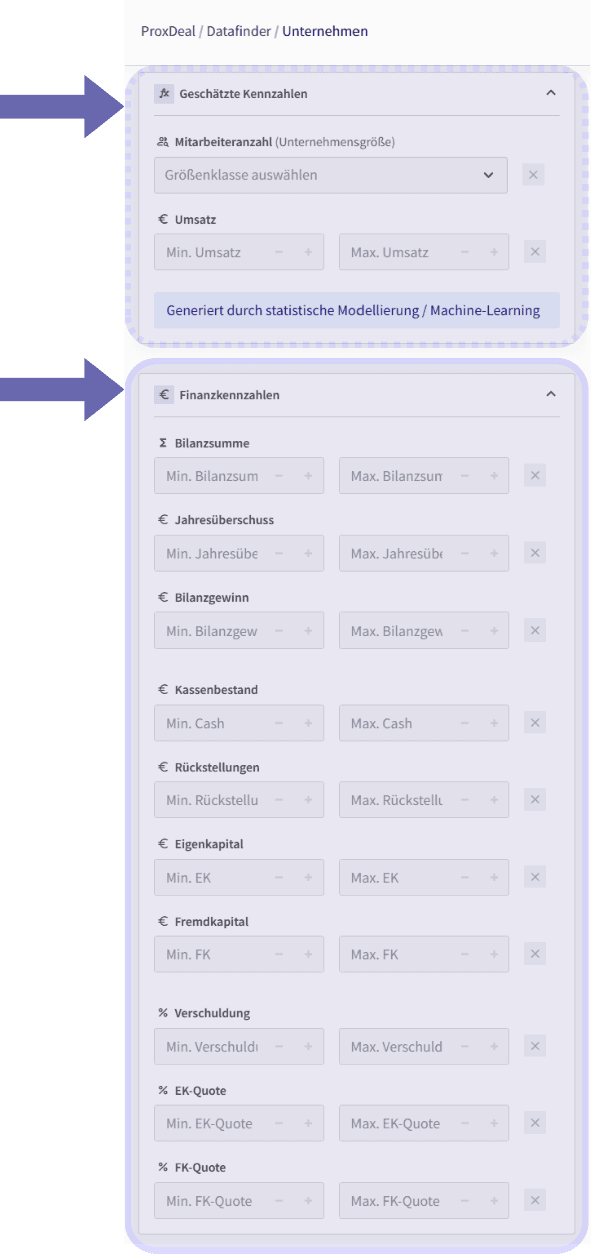
Another filter section covers estimated metrics. You select the number of employees by size class – such as micro, small or medium – and can also filter by estimated revenue. Both values are based on statistical modelling and machine learning and are therefore approximations.
Directly below are the financial metrics, which are drawn from the companies’ actual annual financial statements. In total, you can filter by ten different metrics, from total assets and equity through to the debt ratio, and narrow down each one with a minimum and a maximum value.
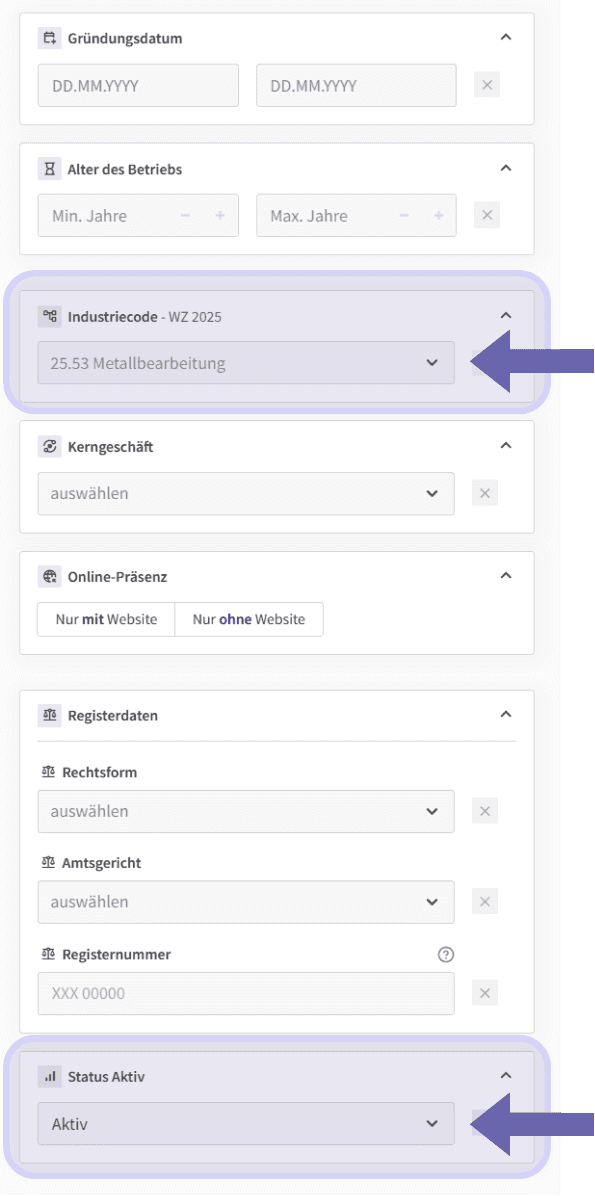
Filters are also available for general company information. You can narrow down the founding date and the age of the business, and select the industry code from the NACE-based German Classification of Economic Activities (WZ), which allows a somewhat more formal search. These are followed by core business and online presence; the latter lets you display companies with and without a website separately.
The last section covers legal details. Legal form, register court (Amtsgericht) and register number are available as filters; all drop-down menus are sorted alphabetically and can also be searched by typing directly. Finally, the activity status determines which companies are displayed. By default, only active companies are shown, but you can include inactive companies if needed.
Viewing the search results
You can display the companies found either in a profile view or in a table view. The profile view gives a concise, general overview with logo, company name, legal form, activity status, register number, country code and register court. The table view contains a few additional columns, including website, company type, number of employees, industry and description. One advantage of this view is that you can sort the columns in ascending or descending order, both alphabetically and numerically.
In both views, you can save the list via ‘Save as longlist’ at the top right, so that you can open it again in the longlist overview at any time.
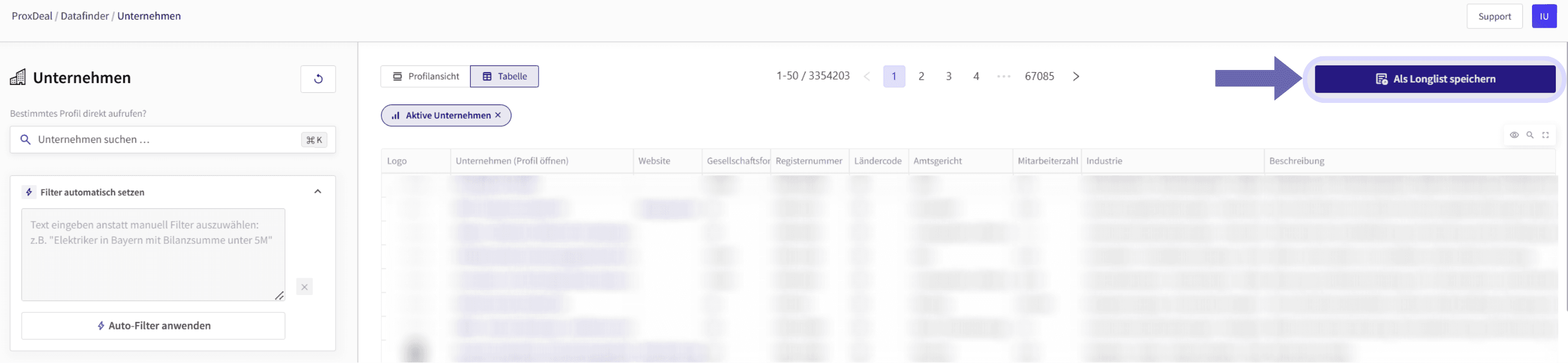
Before saving, it is worth checking the filters you have set. They are shown together above the results and can be removed either there, by clicking the ‘x’, or in the relevant filter section on the left.
Clicking ‘View profile’ opens the corresponding company profile in a new tab, where the more detailed analysis begins.
The company profile
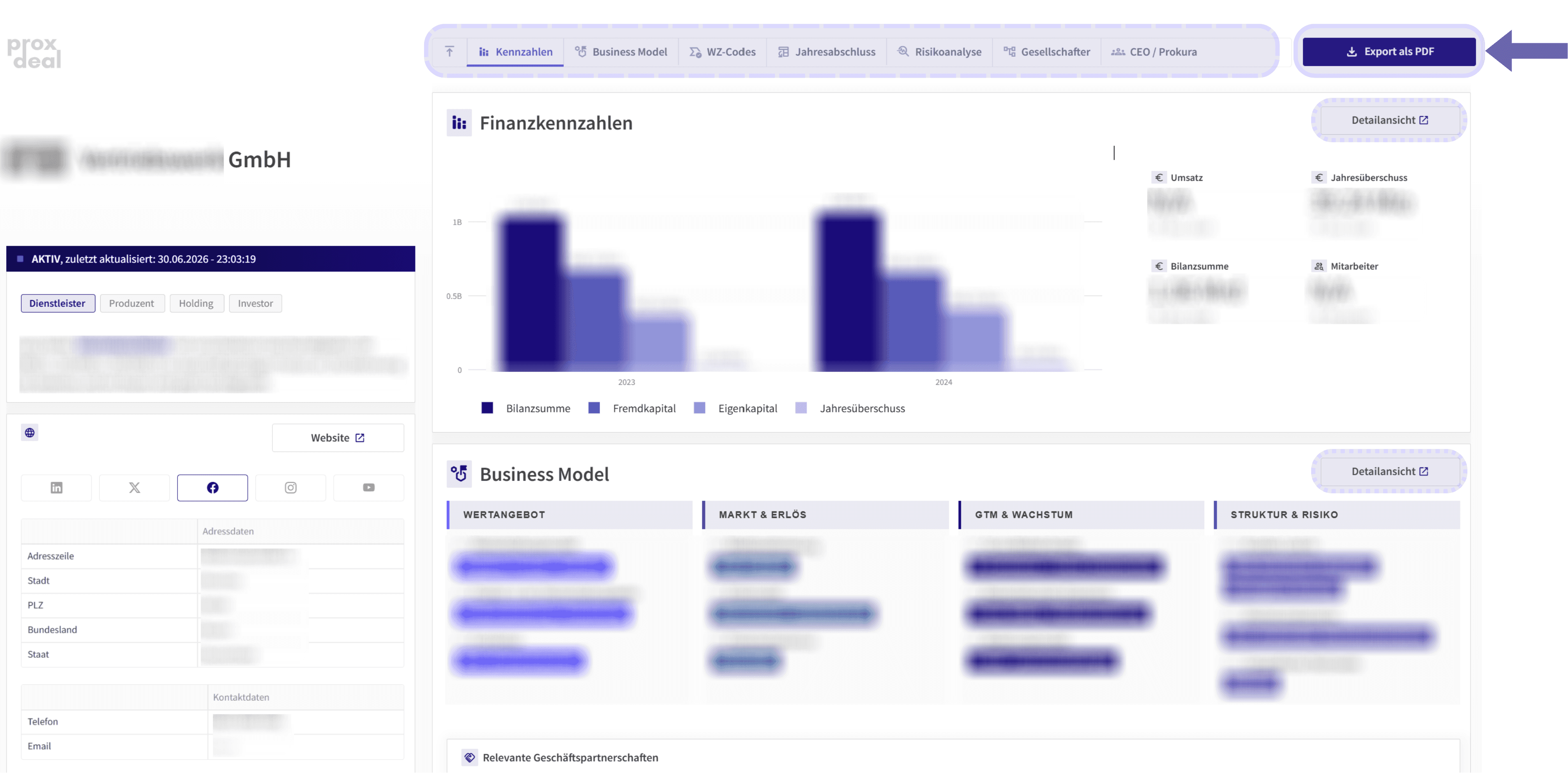
The left-hand section of the company profile neatly summarises all the basic information. This includes the logo, the activity status, the core business and a description of the company based on its website. Below this, you will find the company website and other social media channels, which you can open directly, as well as address and contact details. Next come the register data with register number, founding date and the resulting age of the business, complemented by the corporate purpose as stated in the register entry and a complete overview of all other register data. An integrated map view shows the company’s location and can be opened in Google Maps if required. Finally, you can contact support directly if you have any questions or comments.
The right-hand side of the company profile provides the more detailed, in-depth analysis. An overview at the top gives you access to all sections, which you can jump to directly from there – from the financial metrics through to Prokura (statutory commercial power of attorney).
Financial metrics
At the very top of the profile, a table gives you an overview of all relevant metrics, including revenue, total assets, equity and debt capital, equity ratio, cash, current assets, liabilities, EBIT and net income under the German Commercial Code (HGB). The table also contains all balance sheet, income statement and cash flow items, with the respective reporting years shown in the columns. To the right of the table, the most important current metrics are highlighted – specifically revenue, total assets, net income and number of employees, together with the reporting period.
Business model
The business model is first presented in a compact overview divided into four areas: value proposition, market and revenue, go-to-market and growth, and structure and risk. Clicking ‘Detailed view’ lets you examine these classifications in more detail, including the reasoning behind each assessment and categorisation. For example, you can see why a company’s geographical reach was classified in a particular way, as the profile shows how this was derived from the available evidence. Relevant business partnerships are also listed.
This is followed by the industry classification. The industry codes used here follow the German Classification of Economic Activities (WZ 2025) and range from the top-level category down to the specific activity.
Annual financial statements in detail
Below the metrics table, you can analyse the annual financial statements individually. When you open a year, the previous year’s figures are displayed automatically as well, so there is always a comparison column. The presentation follows the classic structure of balance sheet (assets, equity and liabilities) and income statement, with all items shown in full and clearly laid out. If no tables are available, this is usually because the company is not subject to a disclosure obligation.
Risk analysis
For the risk analysis, three established models for insolvency prediction are shown side by side for comparison. The Altman Z'-Score is based on multivariate discriminant analysis for non-listed companies and relies on five ratios. The Ohlson O-Score uses a logistic regression model with nine balance sheet ratios, comparing the current year with the previous one. The Zmijewski score, in turn, uses a probit model based on three balance sheet ratios.
Each result is displayed immediately, together with the individual ratios, their values and their assessment. Further guidance on how to classify and interpret the results is shown in grey below the tables. Clicking ‘Learn more’ also takes you to the article ‘Insolvency risk analysis in the DACH private market’, which explores the topic in more depth.
Shareholder structure
The shareholder structure section starts by showing, at the top, how many persons and ownership levels are involved. The chart below then presents the complete structure graphically. For natural persons, the details shown include full name, date of birth and age, and country, as well as the effective shareholding and status as beneficial owner (UBO). A legend at the bottom explains what the coloured boxes stand for, such as target company, shareholder, private individual or subsidiary.
Authorised representatives
At the end of the profile, the persons and entities authorised to represent the company are listed. You can click on each of them to expand the related information. This includes role, address, register information and, where relevant, the amount of the registered liability contribution (Hafteinlage).
Exporting a report
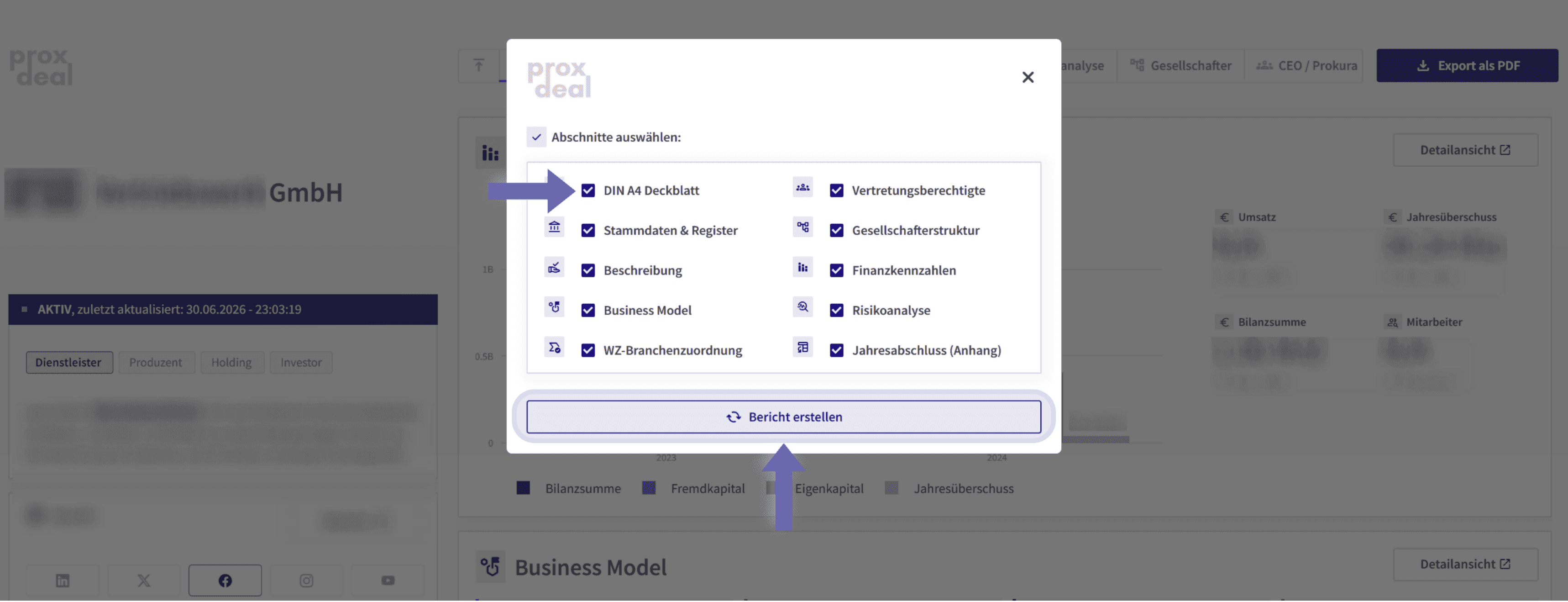
You can export all the information in a profile as a PDF, formatted like a report. The ‘Export as PDF’ button first opens a selection in which you put together the sections you want – from an A4 cover page through master data, description, business model and financial metrics to the risk analysis and the annual financial statements. A final click on ‘Create report’ generates the finished document.
Benefits
The database gives you a complete overview of DACH companies in seconds. Thanks to flexible search and filter functions, you can identify companies precisely by name, industry, legal form, location or register data. The detailed profiles give you instant access to website imprint details, products, M&A insights, financial metrics and historical financial statements – all clearly laid out in one place.
Thanks to the clear data structure and the download functions, the results are also easy to process further. In this way, the database efficiently supports longlist building, market analysis, M&A research and strategic decision-making.
Book your free demo now and experience all the benefits for yourself.
Stay ahead
 Stay ahead
Discover what ProxDeal PRO can do.
ProxDeal is built specifically for the DACH M&A market. Give yourself a decisive competitive edge – starting today.

Related articles
Tutorials
How to find financial investors in Datafinder
Find private equity firms, family offices and search funds.
Tutorials
How to build an M&A longlist
What makes a good longlist – and how to turn it into a shortlist.
Tutorials
Writing precise prompts
How the right short description determines the quality of your longlist.