
How to automate M&A outreach
Create personalised mail merge letters and emails directly from your longlist.

Contents
Outreach automation makes it considerably easier to get in touch with potential target companies. By generating and sending letters, mail merge letters or emails, you can approach specific target groups with less effort. ProxDeal offers flexible customisation options for this, allowing both full automation and individual design, as explained in more detail below.
Getting started
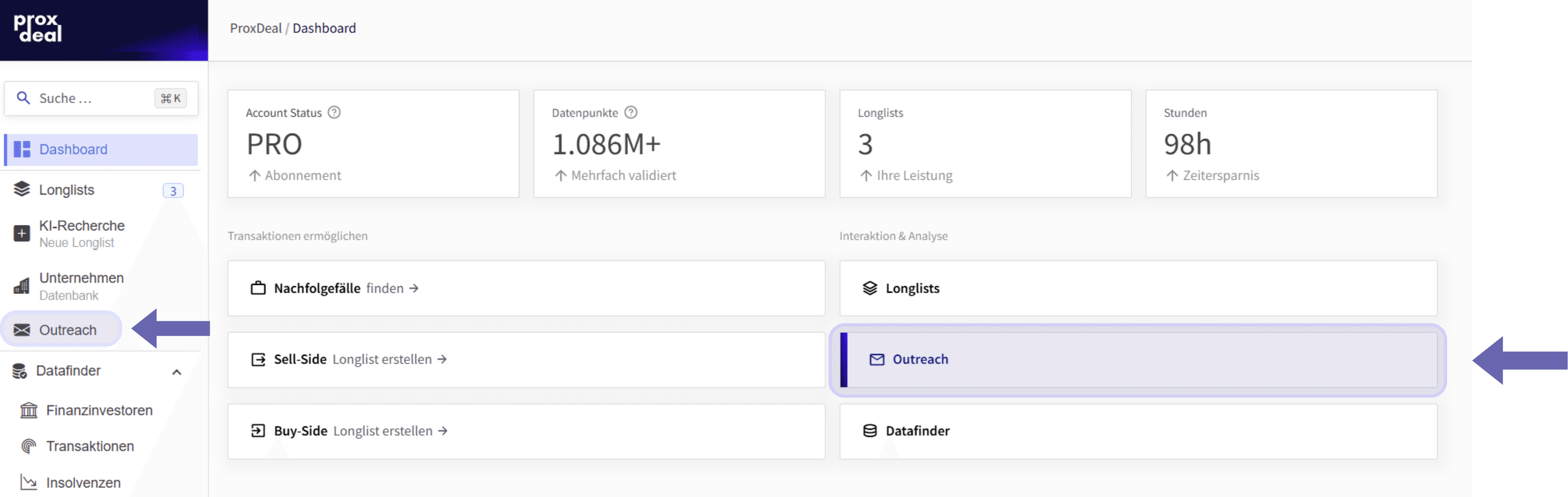
You can launch outreach automation directly from the dashboard or via the ‘Outreach’ function in the left-hand sidebar.
Alternatively, you can access it via the longlist overview by selecting and opening a longlist that has already been delivered. In that longlist’s last tab, ‘Letter/email outreach’, you can then start the outreach directly for this longlist.

In the first tab of a generated longlist, you can also make your selection for a shortlist at any time. There, you can either select or deselect all companies at once, or tick and untick individual companies in the selection column. This turns the longlist into a shortlist that you can define before the outreach even begins.
If the AI outreach messages were generated together with the longlist, you can also click the individual cell of a row in the ‘Outreach’ column to open the AI outreach message for that company on its own in your email client.

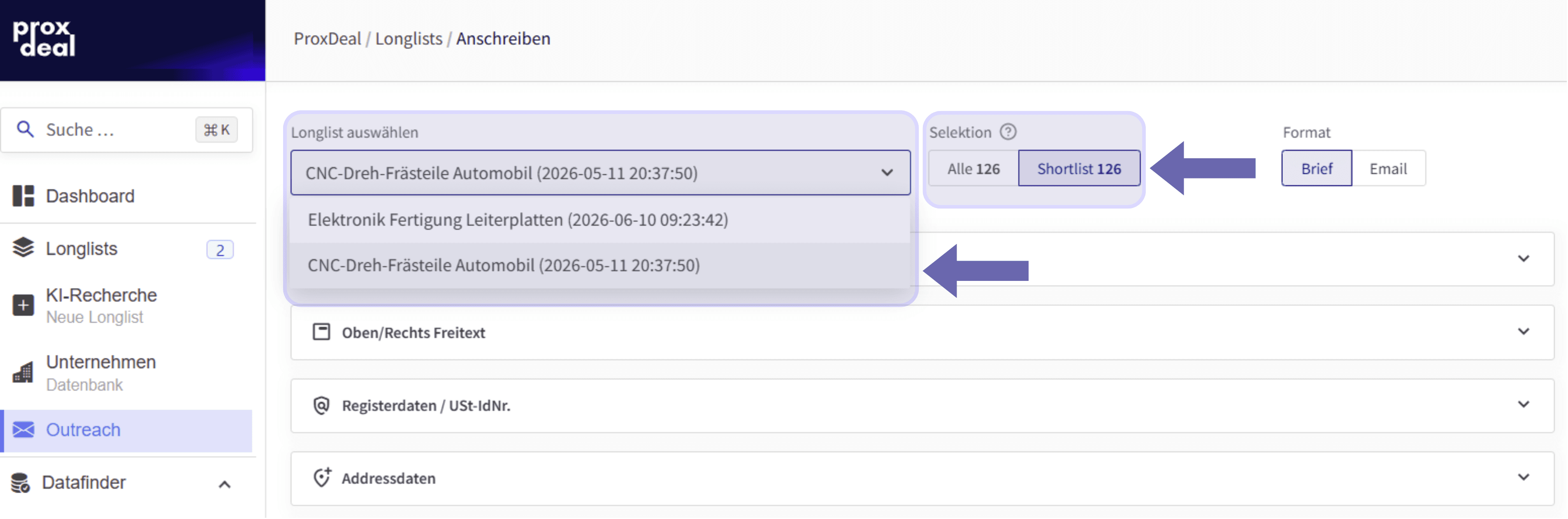
You can also switch to a different longlist using the ‘Select longlist’ field, which lets you choose from all your other generated longlists.
The shortlist is important because you can then use it as the ‘Selection’ option to start the outreach for exactly this set of companies. Alternatively, you can generate mail merge letters or emails for all the leads in the longlist.
Creating mail merge letters or emails
When choosing the type of outreach, you can opt for either a letter format or an email format. The key difference lies in how the data is displayed in the header and footer and in the download options, as you will see later.
Whichever method you choose, the next step lets you set certain design preferences and enter specific details to complete the template. How the data you enter is displayed and where the elements are placed depends on whether you opt for a letter or an email.
Customisation options for the letter format
First, select the letter option as the outreach format. You then have a wide range of customisation options that affect the layout and presentation, as explained in more detail below.
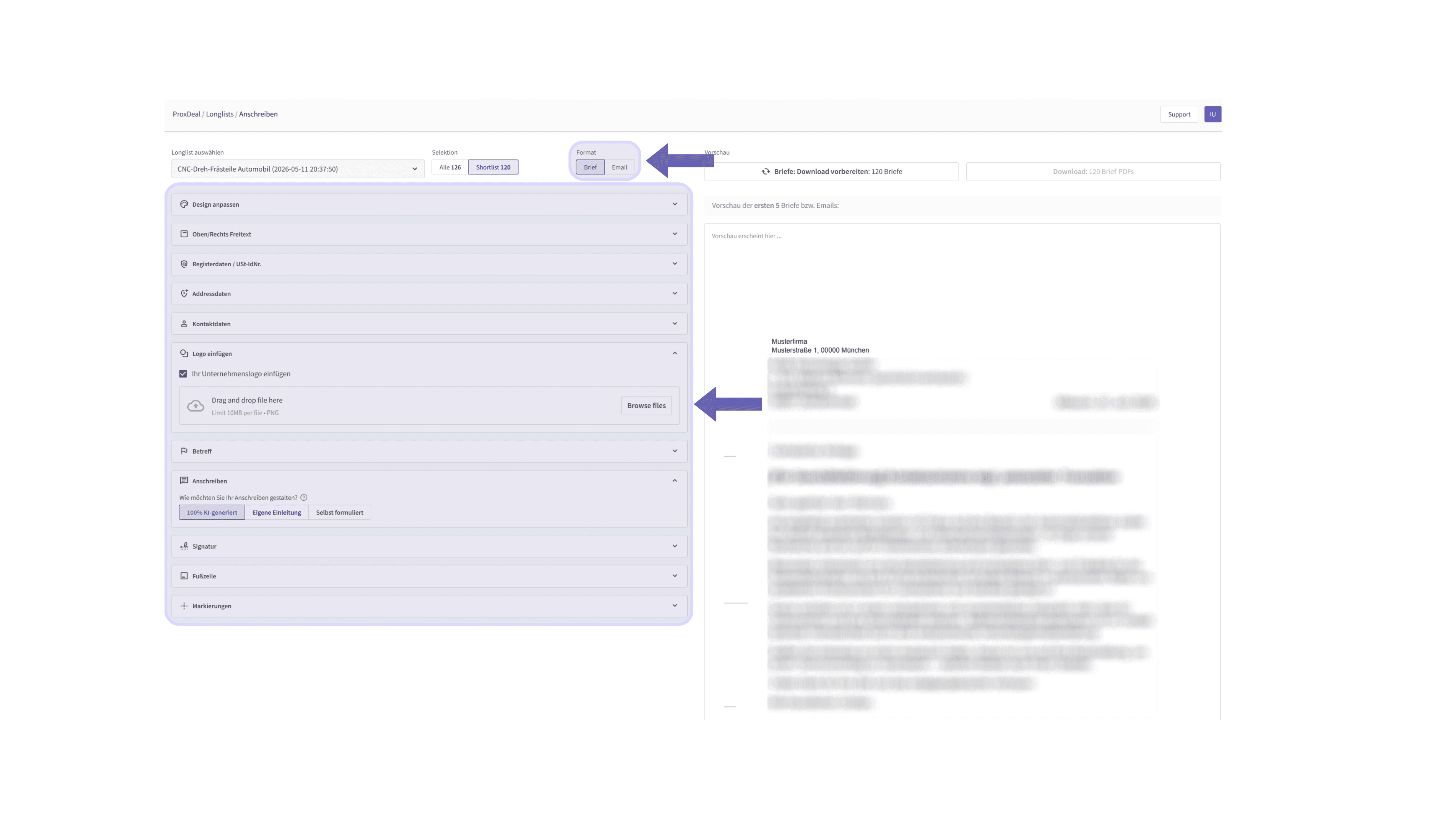
The customisation options for the letter format start with the font, where you can choose between Times New Roman and Helvetica.
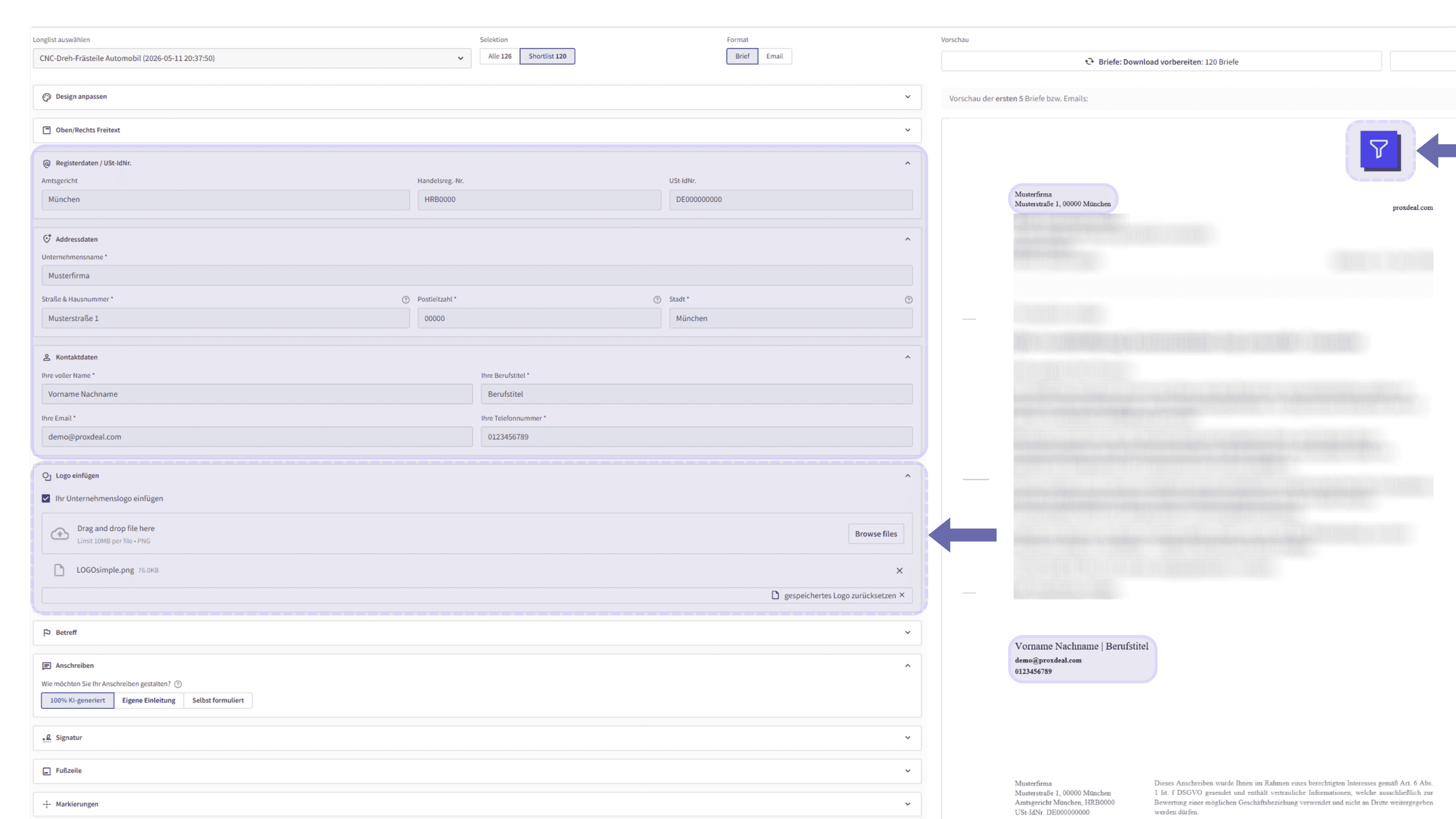
Immediately after that, you have the option of placing a short free-text block of up to four lines below the logo in the top right-hand corner of the letterhead – for example, to highlight your locations, your website or additional contact details.

Next, enter the official company data, including the registry court, commercial register (Handelsregister) number and VAT identification number.
It is then particularly important to provide complete address and contact details. All fields marked with an asterisk must be completed to avoid missing information or incomplete content. The address information you enter appears both in the letterhead and in the optional footer, while the contact details are also used for the automatic signature in the sign-off.
You can then upload your company logo as a PNG file and place it in the top right-hand corner of the letterhead.
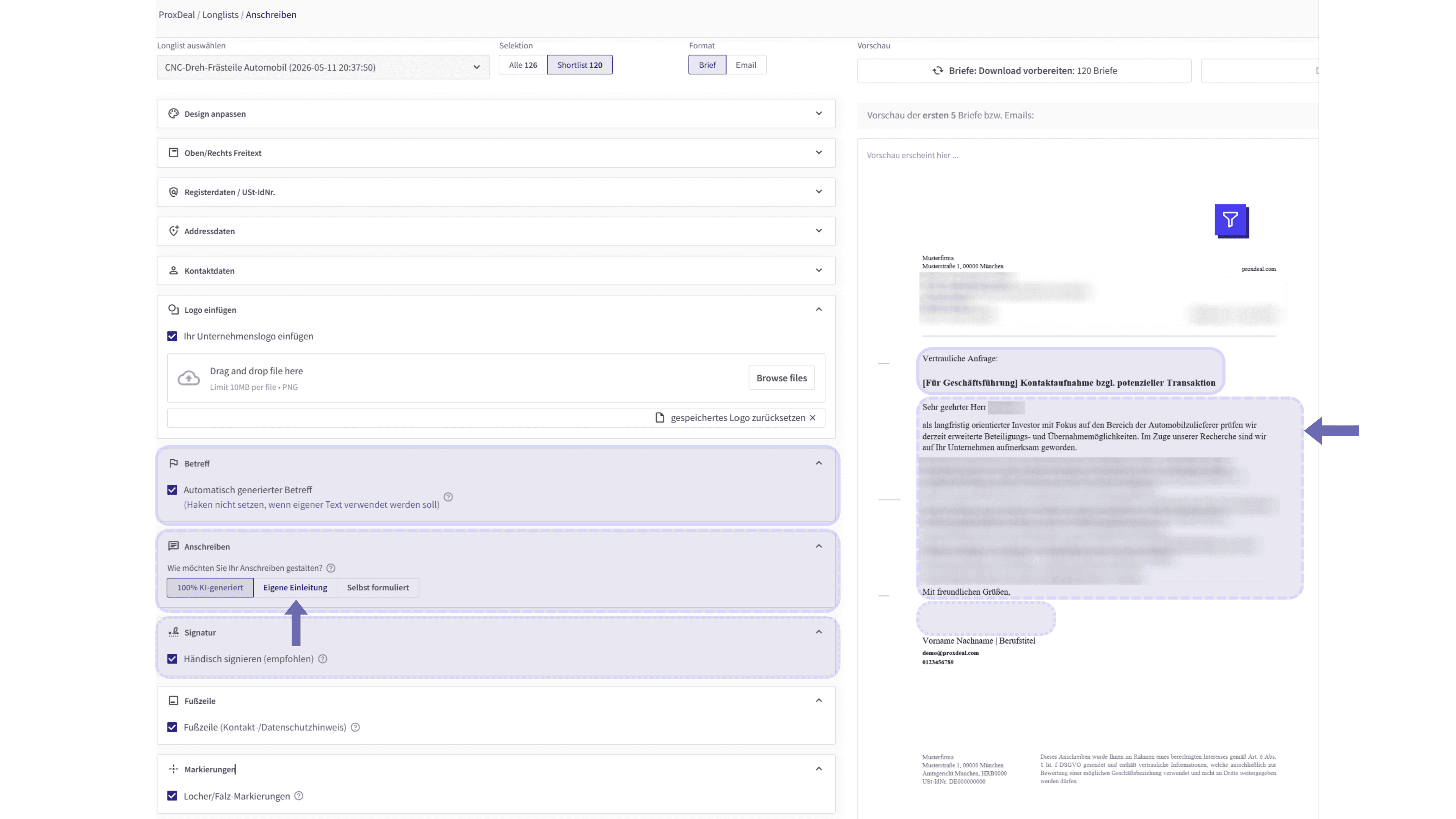
For the subject line, you can either enter your own wording or use an automatically generated, AI-based version.
Three options are available for the body text: fully AI-generated, with only the introduction written by you, or written entirely by hand. Bear in mind that automatically generated texts may vary, whereas content you write yourself remains consistent. Enter your own text for the letter directly in the fields provided and confirm it with Enter or ‘Ctrl + Enter’. Whichever text option you choose, the salutation and sign-off are inserted automatically.
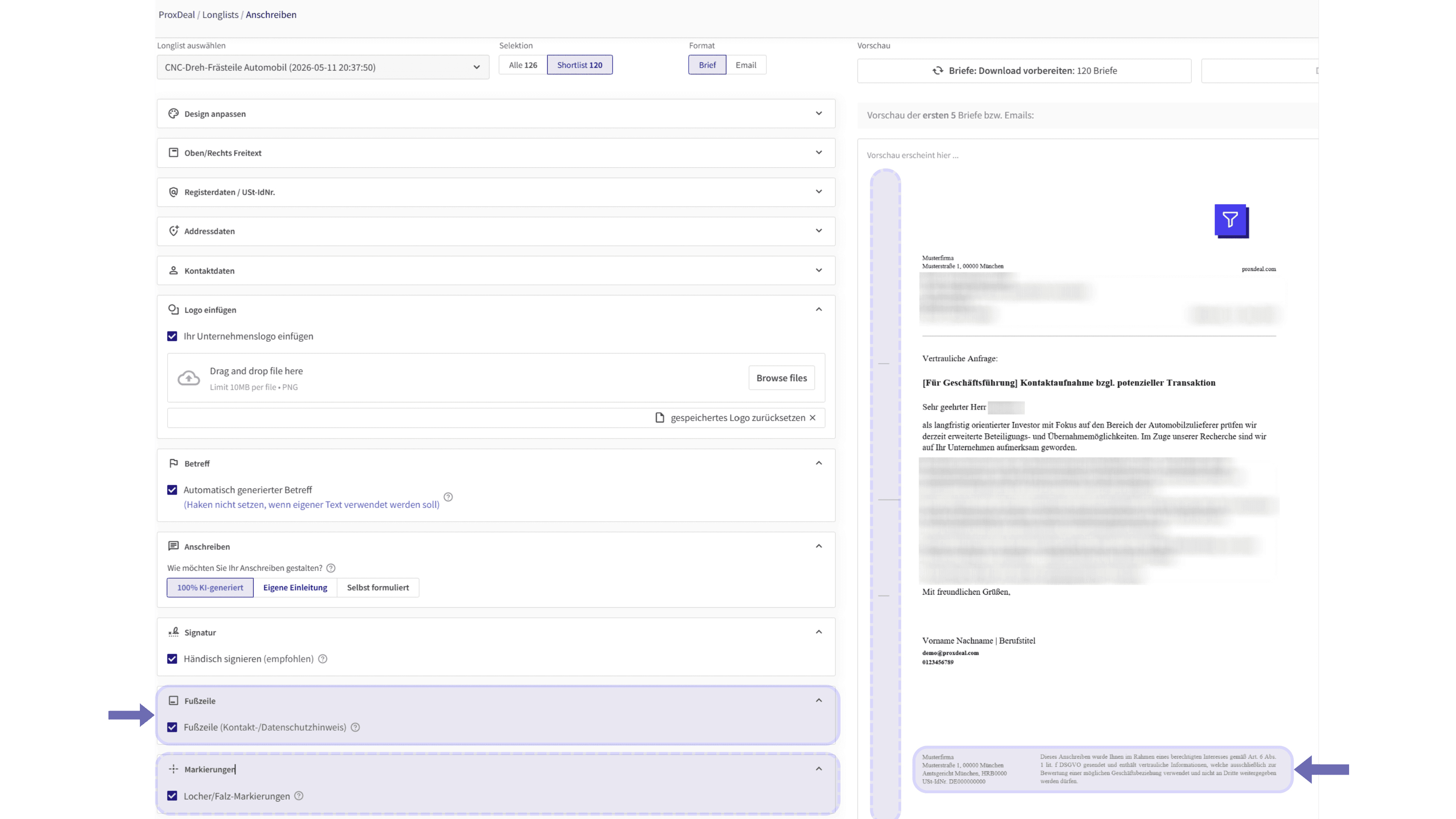
If you want to add a personal touch, you can also choose to put your handwritten signature on each printout. Otherwise, you can replace it with a digital signature as a PNG file. You can optionally enable the footer, which then shows the contact details you entered earlier, along with a data protection notice under Art. 6 GDPR (legitimate interest). You can also show or hide the punch and fold marks in the side margin, which help ensure correct printing, as required.
Once everything is set up, click the ‘Letters: prepare download’ button at the top right to move on to the next step. The letters are now tailored and prepared individually for each recipient. As soon as this is complete, you can download them all as PDFs.

Customisation options for the email format
In this case, select the email option as the outreach format. Here, too, you have the corresponding options for adjusting the presentation.
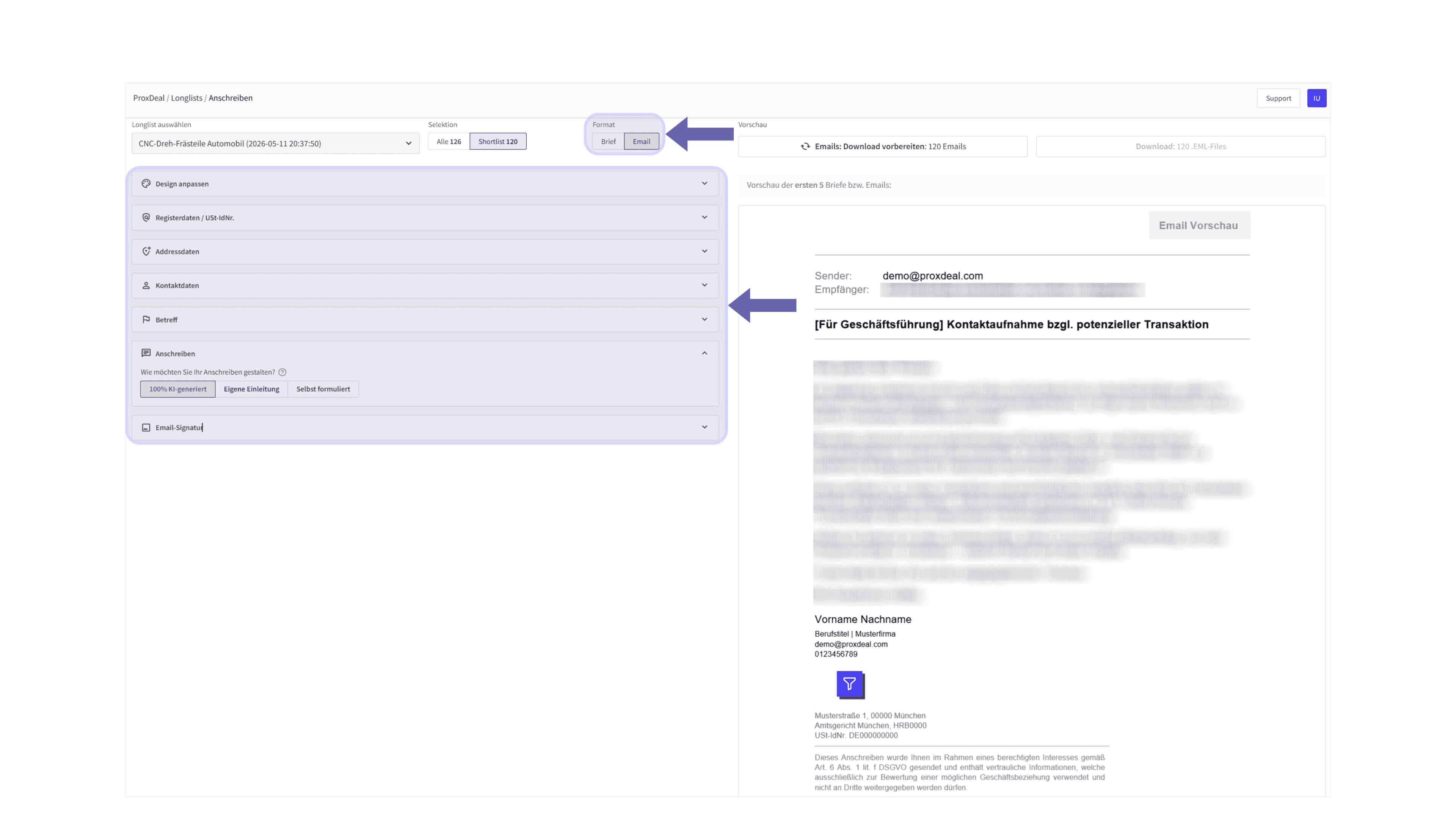
In the email version, you can omit the lower section with the automatically generated signature (including the footer) altogether. The company logo can optionally be included, but only if the signature is generated automatically. Otherwise, you can create the entire signature section of the email manually and insert it yourself.
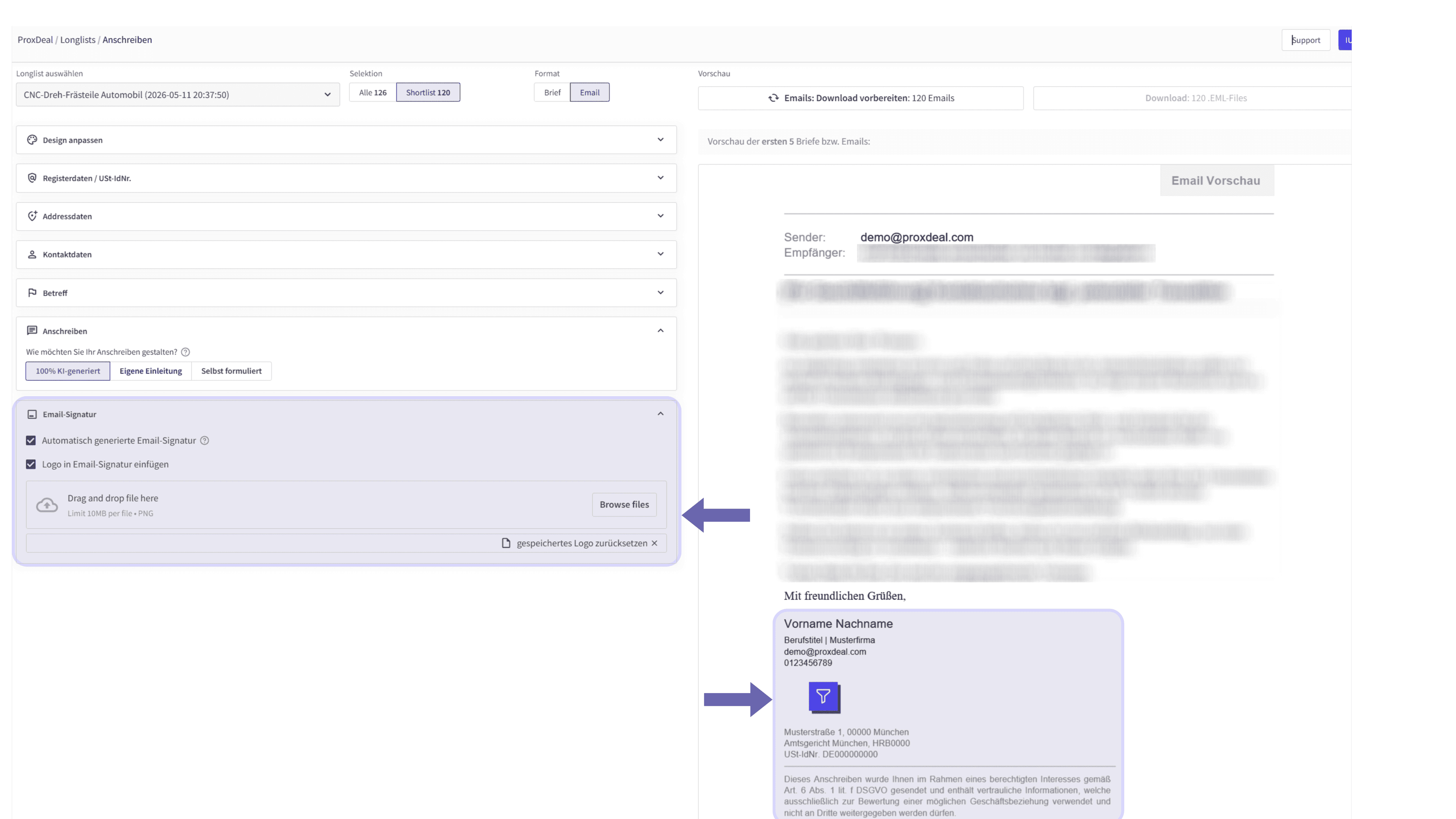
For emails, too, the download is prepared first. Once the preparation has been completed successfully, the emails are ready to download as EML files.

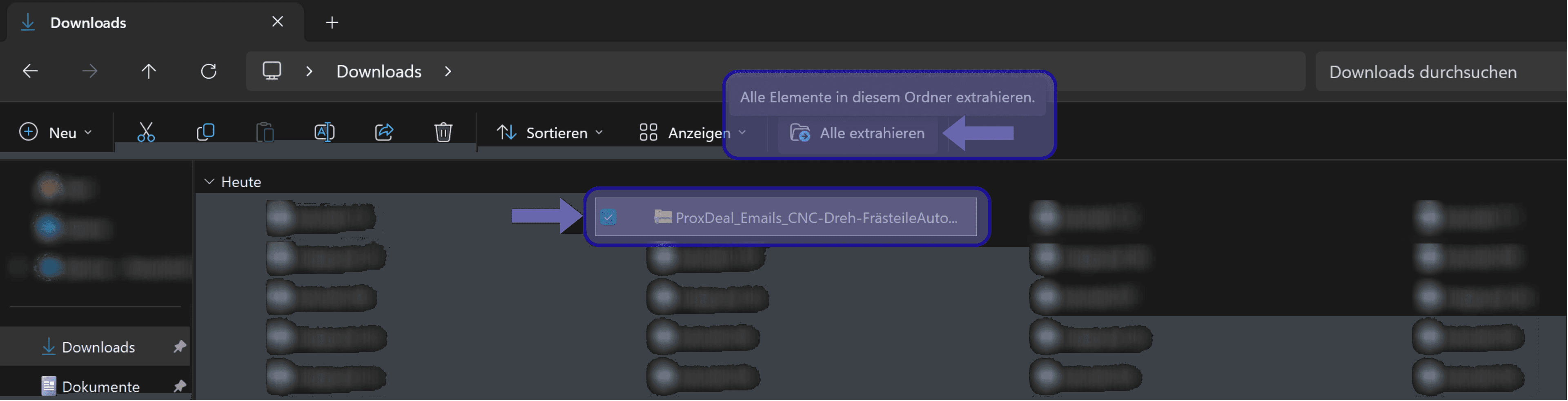
You will then find them in your downloads as a ZIP folder. Select the folder and click ‘Extract all’.
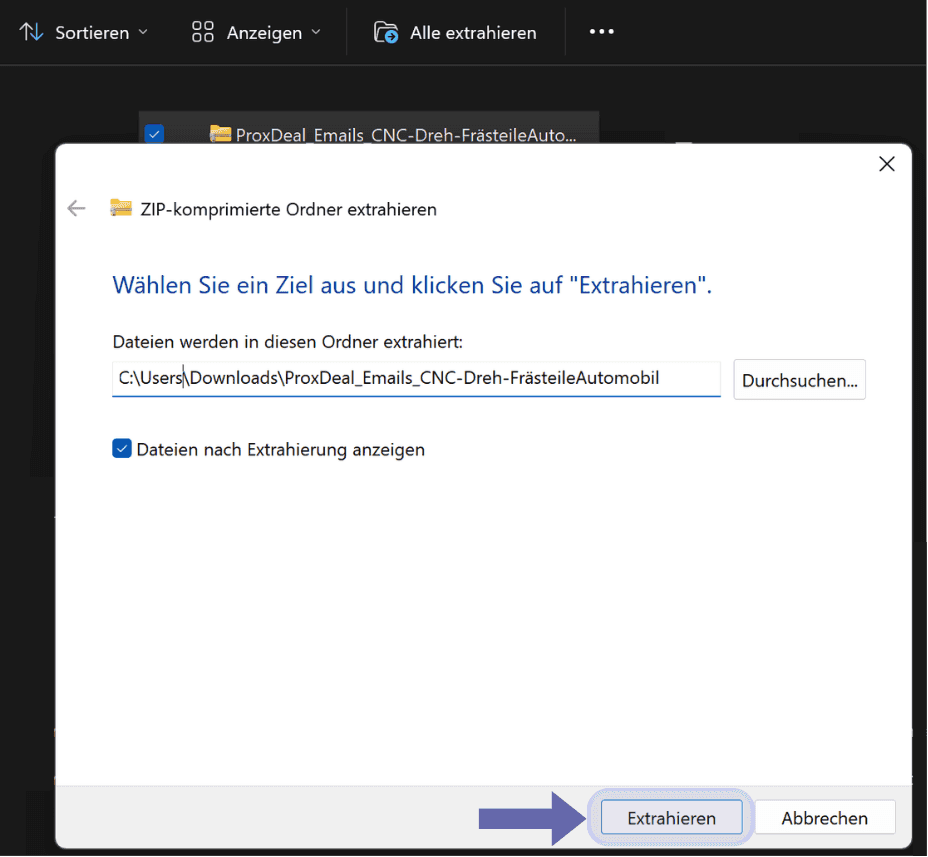
A pop-up window opens in which you select the destination for the extracted files. If the destination folder is correct, click the ‘Extract’ button.
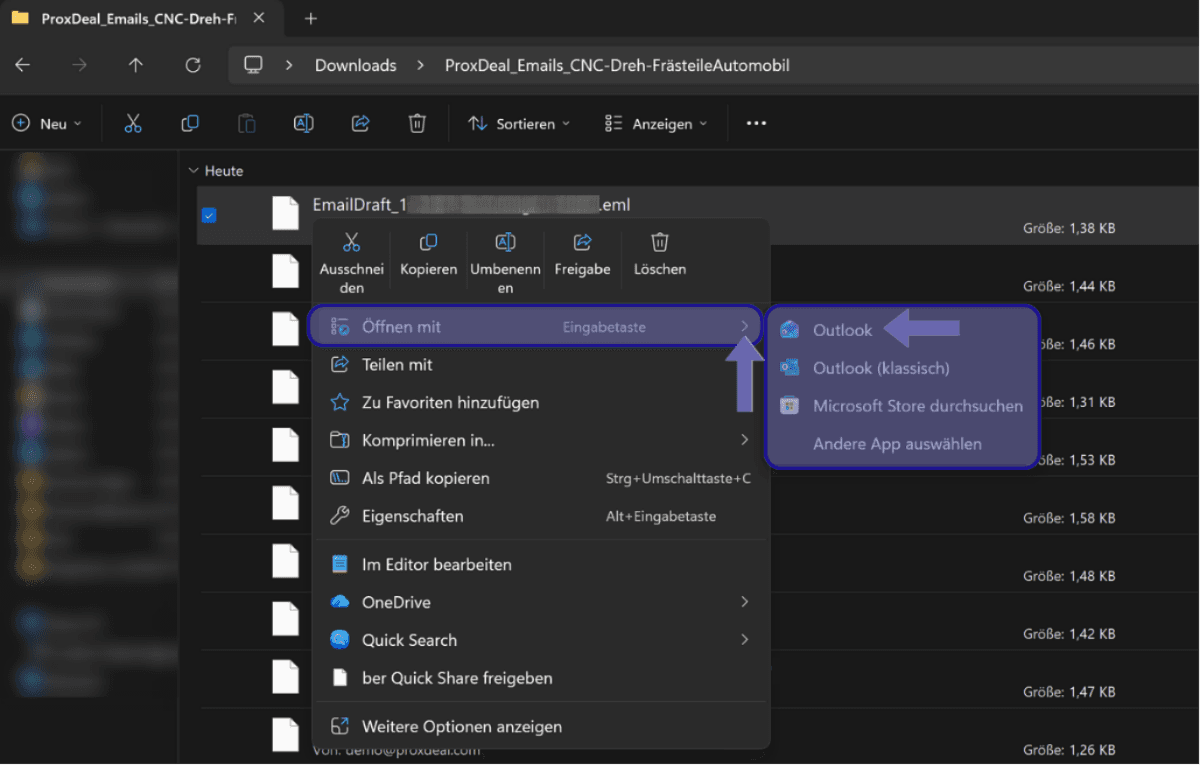
In the folder, you can now select all files or just individual ones.
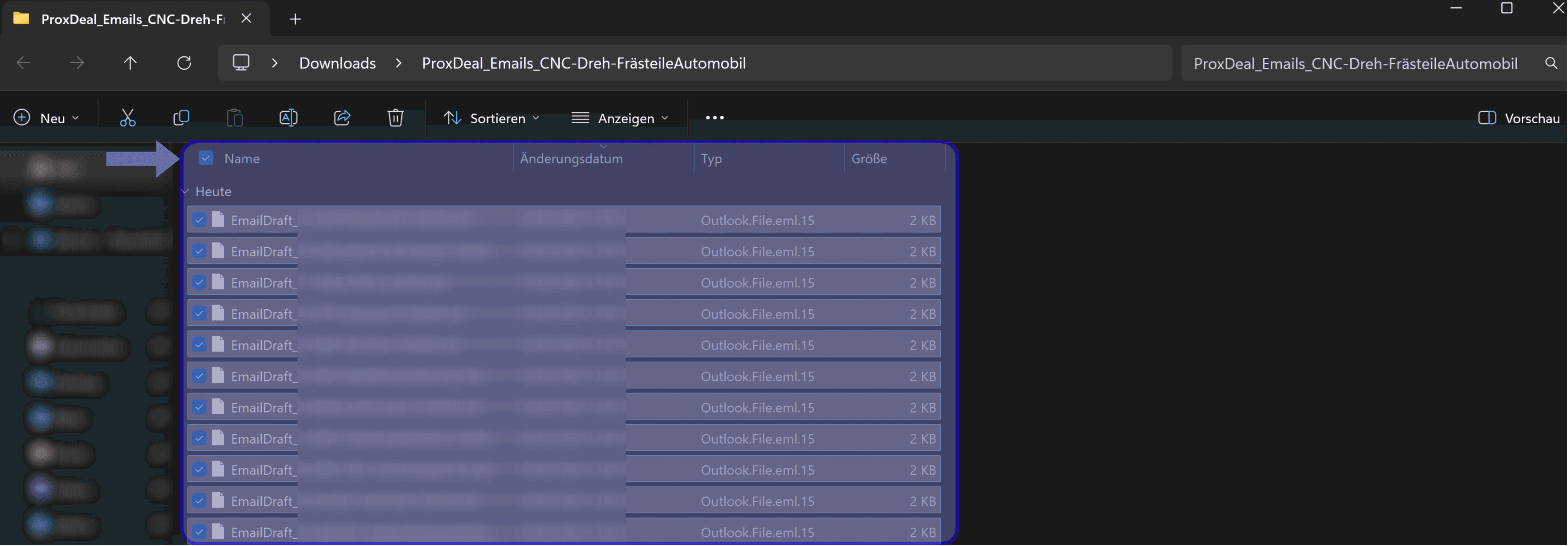
Right-click, choose ‘Open with’ and select your preferred email client: each email then opens in its own window with its content. This allows you, for example, to check them one last time before sending them.
Benefits
One of the greatest benefits is the considerable time savings that automation delivers. With the outreach tool, companies can reach a large number of potential clients quickly without having to compromise on high quality standards in their outreach.
Another benefit is the ability to target exactly the clients you want: by pre-selecting a shortlist, you can focus your outreach on specific target groups. You also retain a degree of flexibility – even though the letters are generated automatically, you can always adapt them individually to meet particular needs or specific requirements.
Last but not least, company logos, signatures and other essential elements can be integrated in a structured way, so that your emails or letters carry a personal touch. Whether automated, individually customised or a combination of both, ProxDeal enables controlled outreach without sacrificing flexibility or personalisation.
Book a free demo now and experience all the benefits for yourself.
Stay ahead
 Stay ahead
Discover what ProxDeal PRO can do.
ProxDeal is built specifically for the DACH M&A market. Give yourself a decisive competitive edge – starting today.

Related articles
Tutorials
Enrich shareholder email addresses with Hunter.io
Add decision-makers’ contact details to your longlist via the Hunter.io integration.
Tutorials
How to create sell-side longlists
Systematically find and export strategic buyers and financial investors.
Tutorials
How to optimise your longlist results
Four steps to more precise, more relevant longlist results with ProxDeal.