
How to optimise your longlist results
Four steps to more precise, more relevant longlist results with ProxDeal.

Contents
With AI technology, you can generate longlists that precisely match the needs of buy-side or sell-side mandates. To get the most out of the technology, it is important to give the AI the right input and to sort and filter the longlist in a targeted way.
The following guide walks you through four key factors that enable our tool to take manual work off your hands as efficiently as possible and build relevant longlists in just a few minutes.
The prompt
The prompt – a short description – specifies exactly what kind of company you intend to sell or acquire. Based on this description, the AI analyses how well other companies and financial investors fit your search intent.
For sell-side mandates
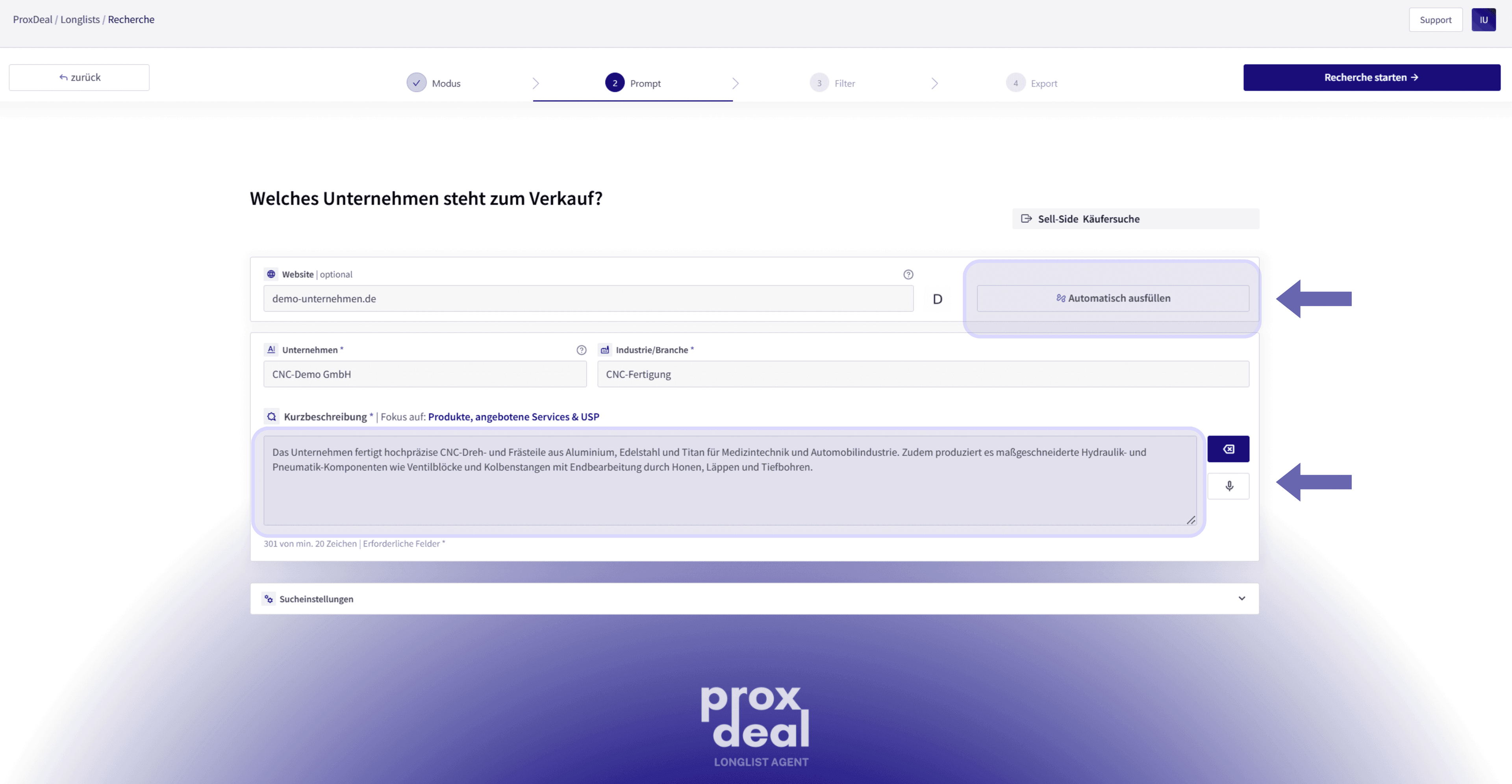
For a sell-side mandate, we recommend entering the company’s website and clicking the ‘Autofill’ button to generate a short description. Where necessary, however, you should adjust or expand this description manually to optimise the accuracy of the search. It is important to work relevant industry terms, including the products and services, into complete, precise and descriptive sentences. Avoid bullet points. This approach delivers targeted and effective search results. To fine-tune the result, you can test the description iteratively.
For buy-side mandates
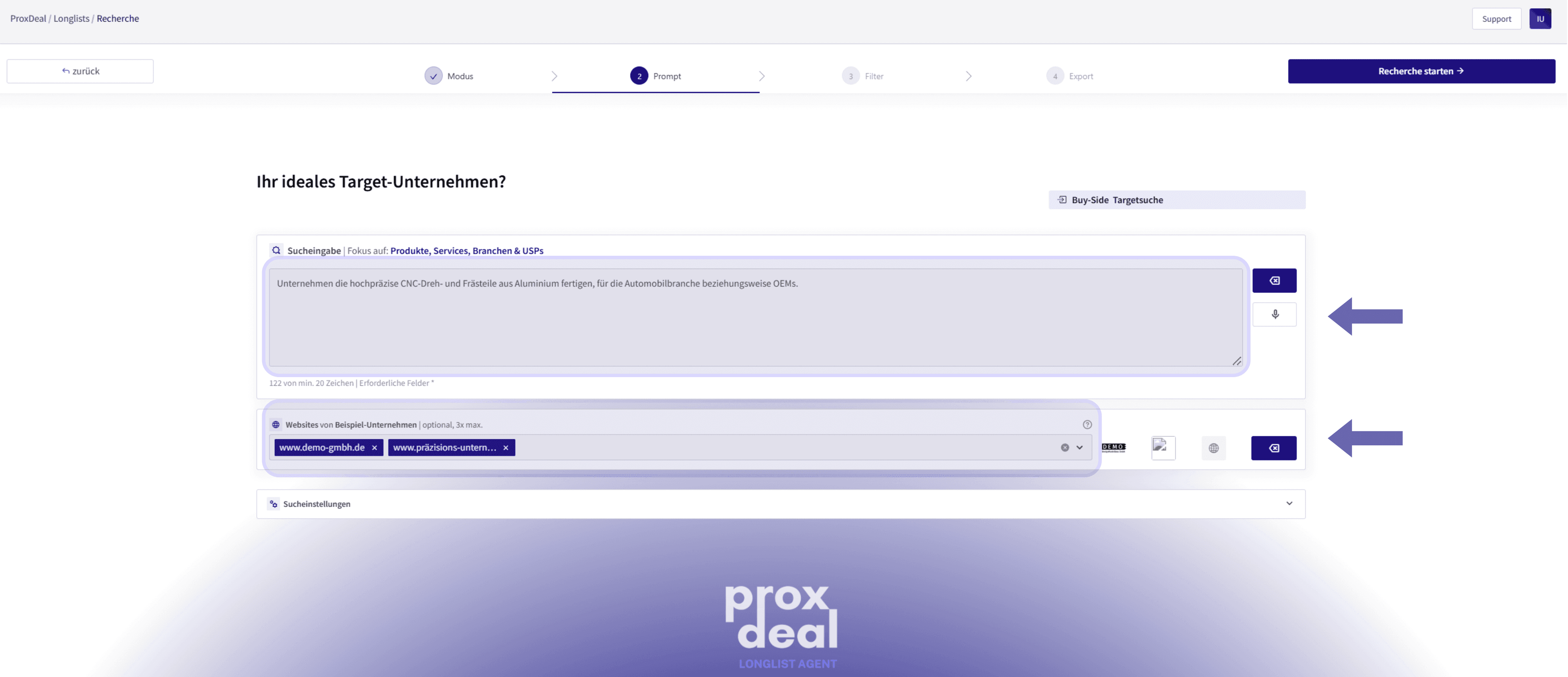
When generating a buy-side longlist, you can add website URLs that serve as a reference for the target results. Together with a focused short description, this improves the quality of the search input. As the company description is entered manually in this step, its precision and relevance matter all the more. As with a sell-side short description, you should describe the target in complete sentences, using specific industry terms and technically precise language.
Filtering in the results review
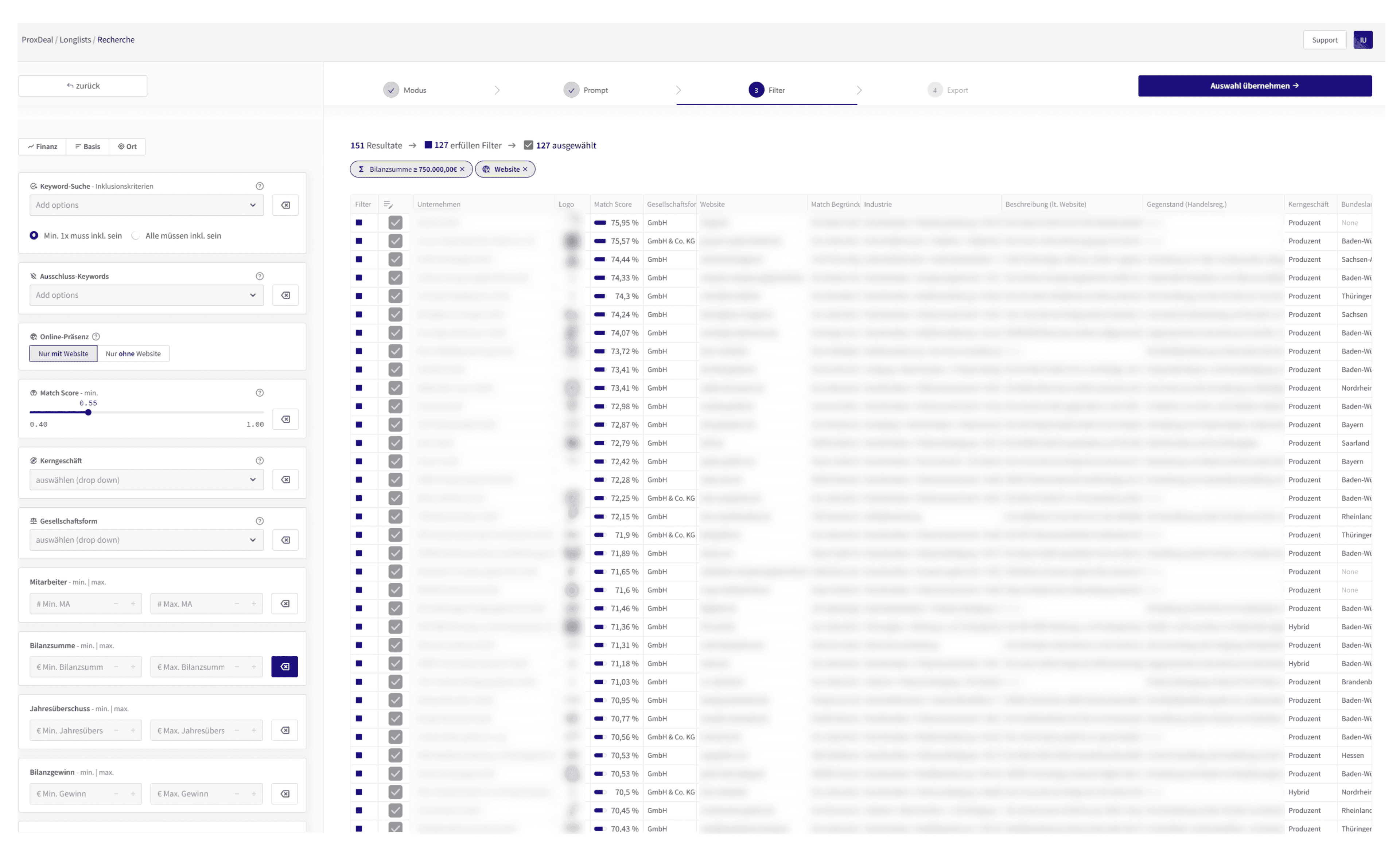
Once the longlist has been generated, an initial overview of matching companies appears. In this step, you can filter and refine the search results further straight away.
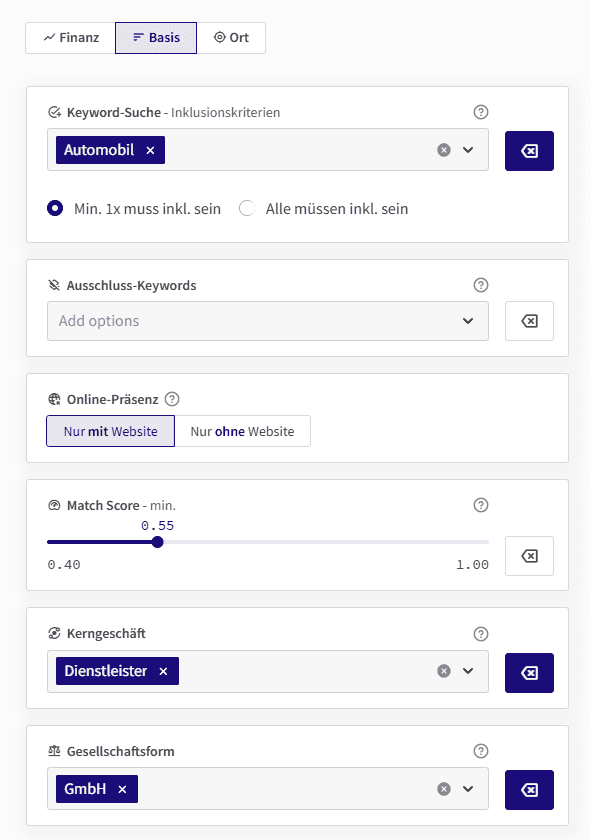
Basic filters
Keyword search – inclusion criteria (positive search): Here you can enter keywords that should appear in the company description or on the website. You can add a list of keywords and choose whether all of the terms must be matched or at least one of them.
Exclusion keywords (negative search): In this field, you can define keywords that must not appear in the results. Companies associated with these keywords are excluded automatically. Each addition helps to focus the list on the most relevant buyers or targets.
Online presence: You can filter specifically to show only companies with a website, only companies without one, or all companies without restriction.
Match score: A slider lets you set a minimum match score. This means that only companies reaching a certain level of business fit are displayed.
Core business: A drop-down menu lets you specify the business model more precisely. The options are:
- Service provider
- Manufacturer
- Hybrid
- Holdings
Legal forms: Common German legal forms can also be selected from a drop-down menu, for example:
- GmbH (private limited company)
- GmbH & Co. KG (limited partnership with a GmbH as general partner)
- AG (stock corporation)
- KG (limited partnership)
- OHG (general partnership)
- UG (entrepreneurial company with limited liability)
Financial filters and metrics
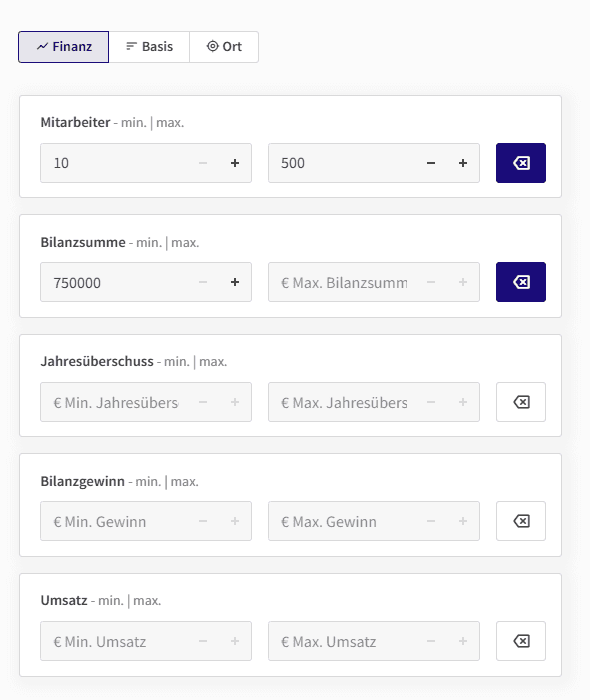
For an even more targeted selection, you can set minimum and maximum values for the following metrics:
- Number of employees
- Total assets
- Revenue
- Net retained profit
- Net profit for the year
This allows you to narrow down potential targets or buyers very precisely.
Location filters
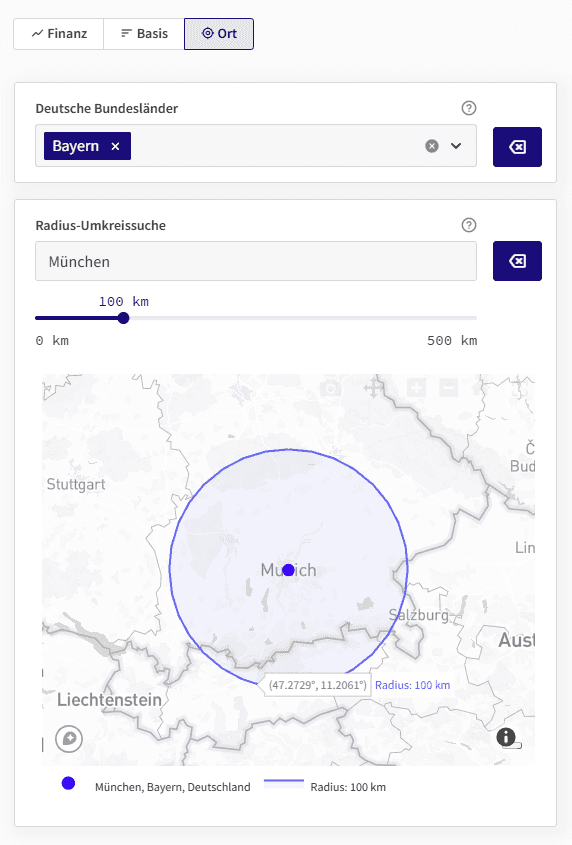
For geographical preferences, the input form offers two different features.
Federal state filter: You can restrict the search to specific German federal states (Bundesländer).
Radius search: Enter a location and confirm it with the Enter key. You can then use a slider to set the desired search radius in kilometres to identify nearby companies.
Sorting in the results review
Selecting and deselecting
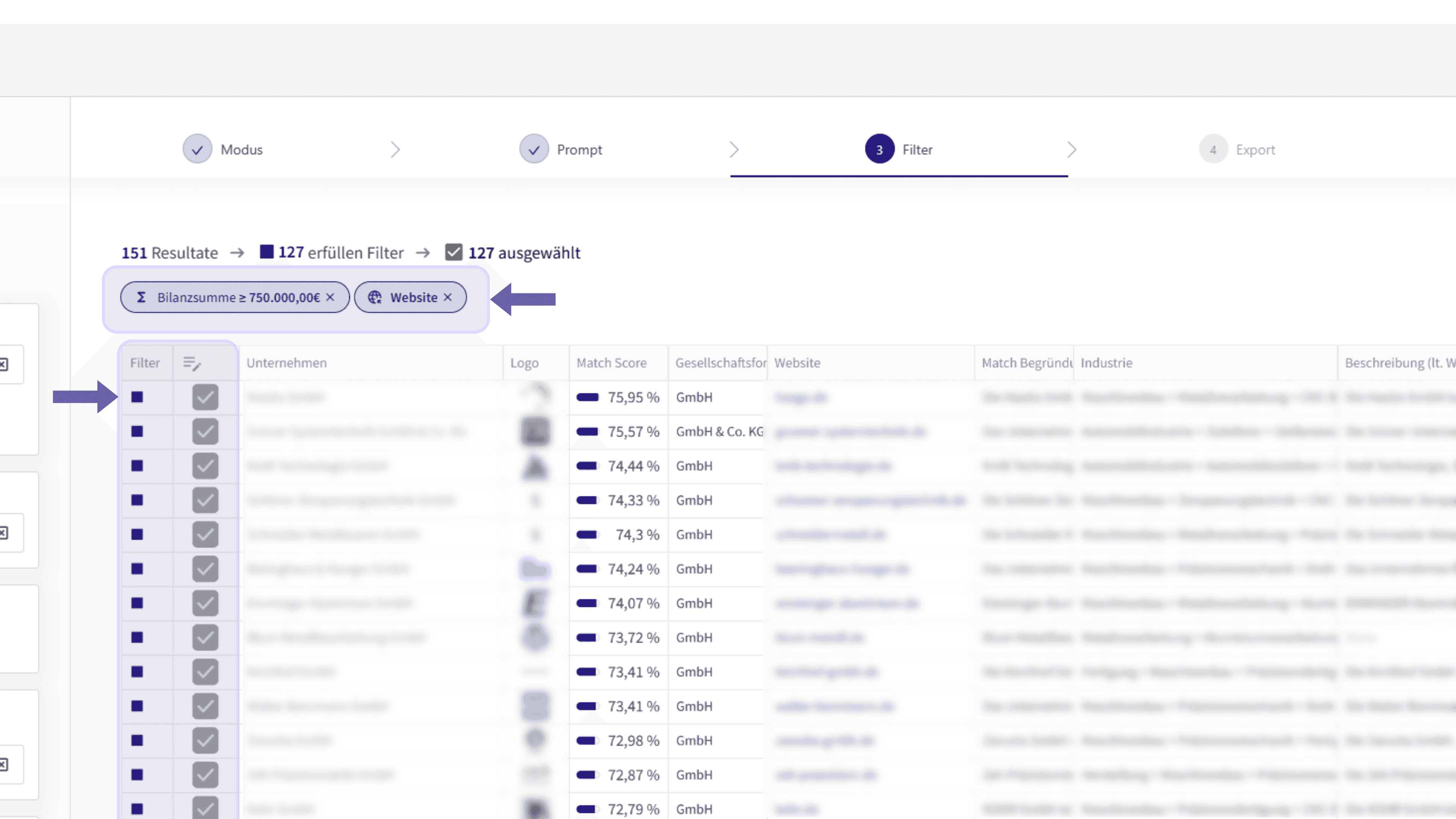
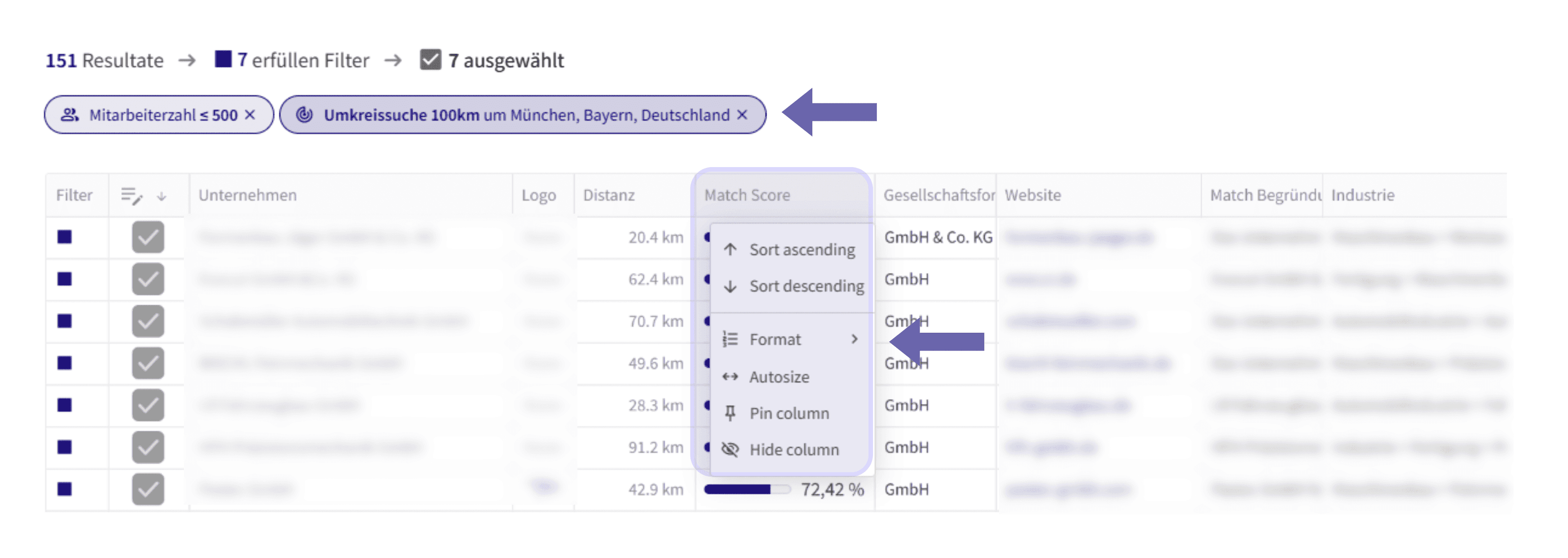
Active filters are shown as bubbles above the results, giving you a quick overview. If needed, you can remove any filter instantly by clicking the X next to it. In the left-hand column of the results table, a blue marker shows whether a company matches the current filter settings. Right next to it, you can manually select or deselect buyers and targets with a single click on a checkbox.
Column sorting
Clicking a column header lets you sort that column in ascending or descending order – both alphabetically and numerically. This function is particularly useful for financial metrics or company size. Nevertheless, the match score remains the most meaningful indicator of business fit.
Optimising the longlist you ordered
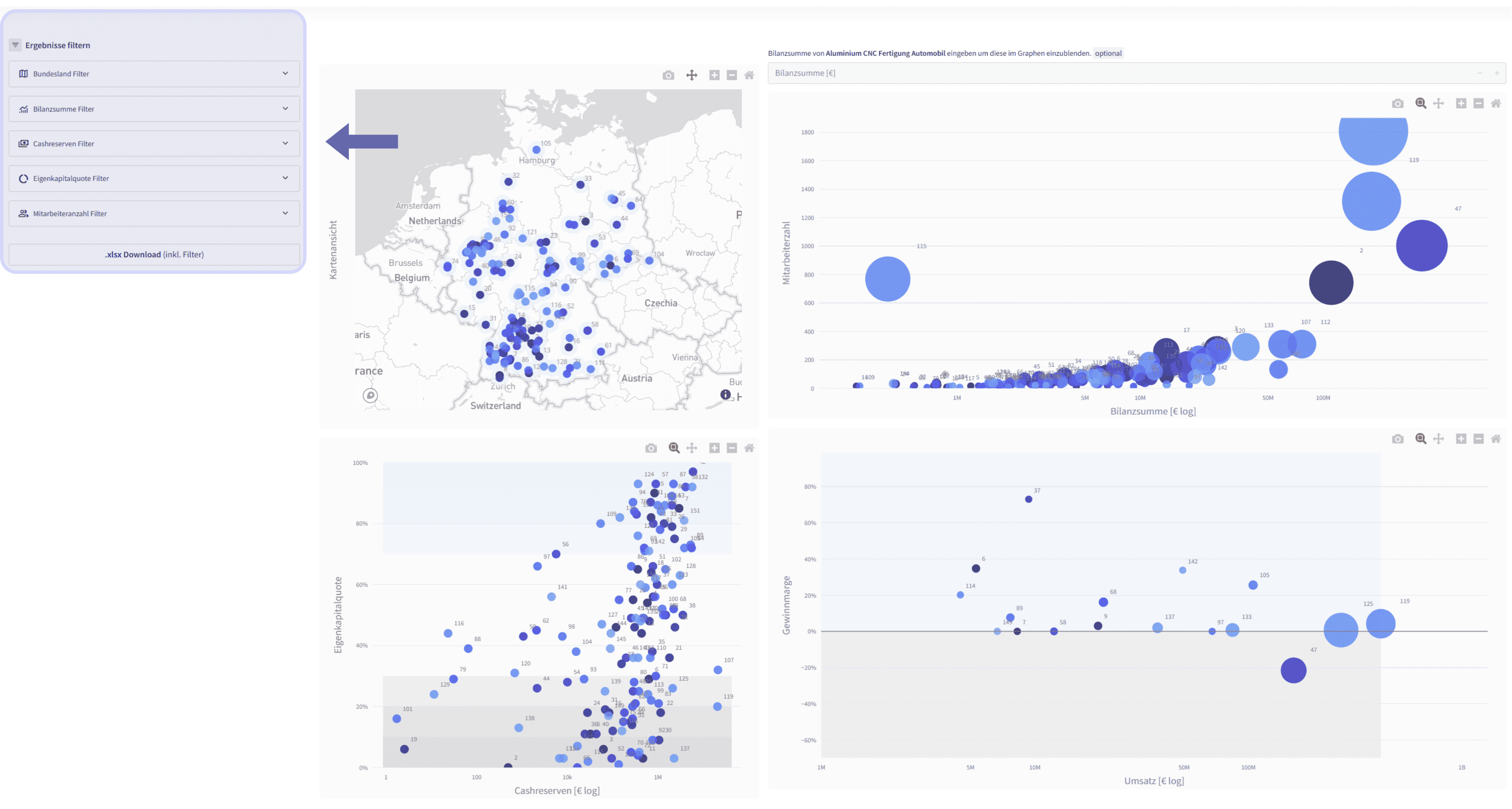
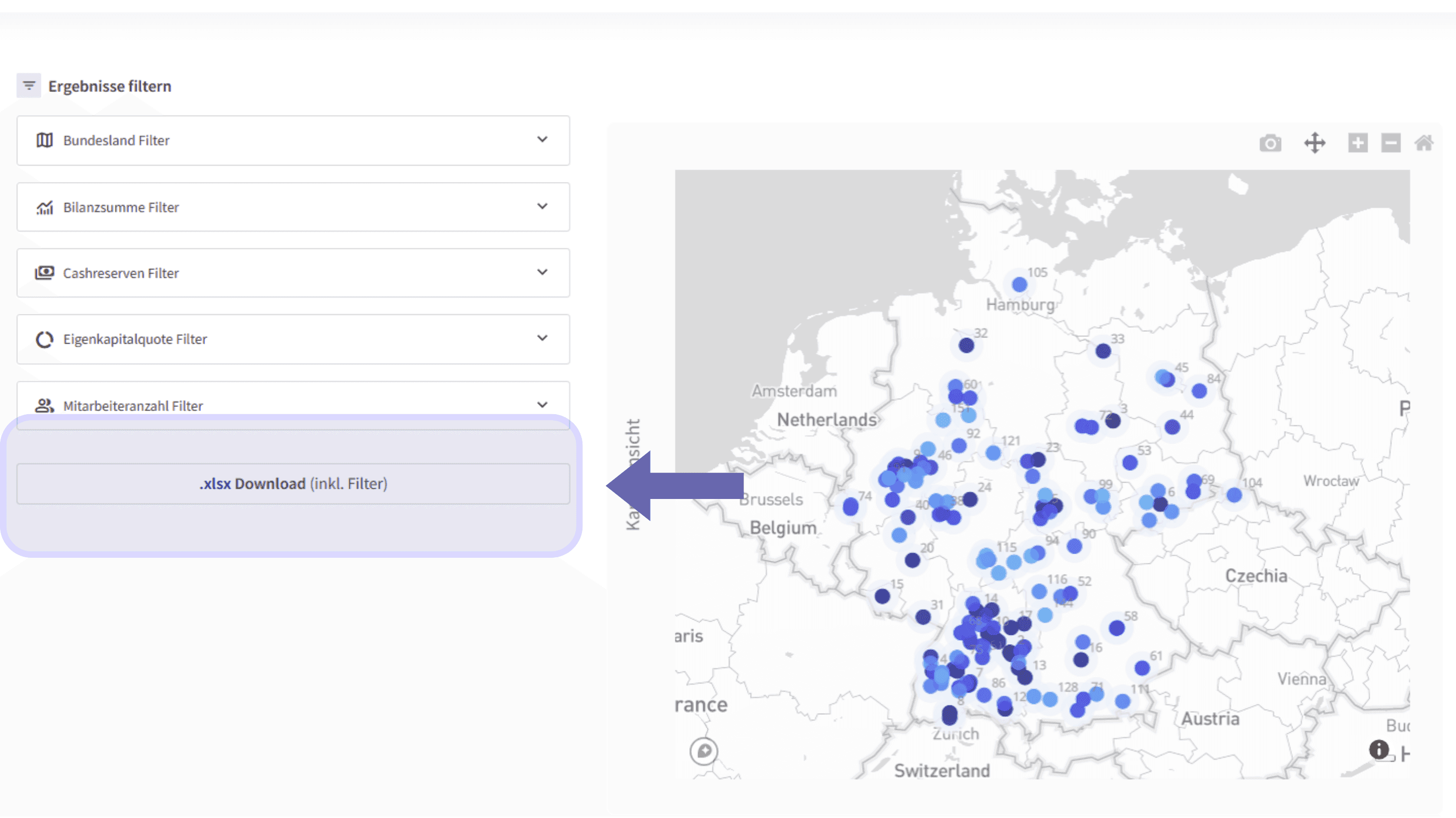
Once the longlist you ordered has been processed and delivered, you can open it with a single click. Here you will first find the same filter options as in the results review. As you scroll down, however, further visual filter options appear.

Visual filtering by metrics and region
In this view, you can once again narrow down the results using minimum and maximum values. In addition, you can limit cash reserves and the equity ratio precisely – not just by simple sorting, but by specific value ranges.
Visual display of all companies
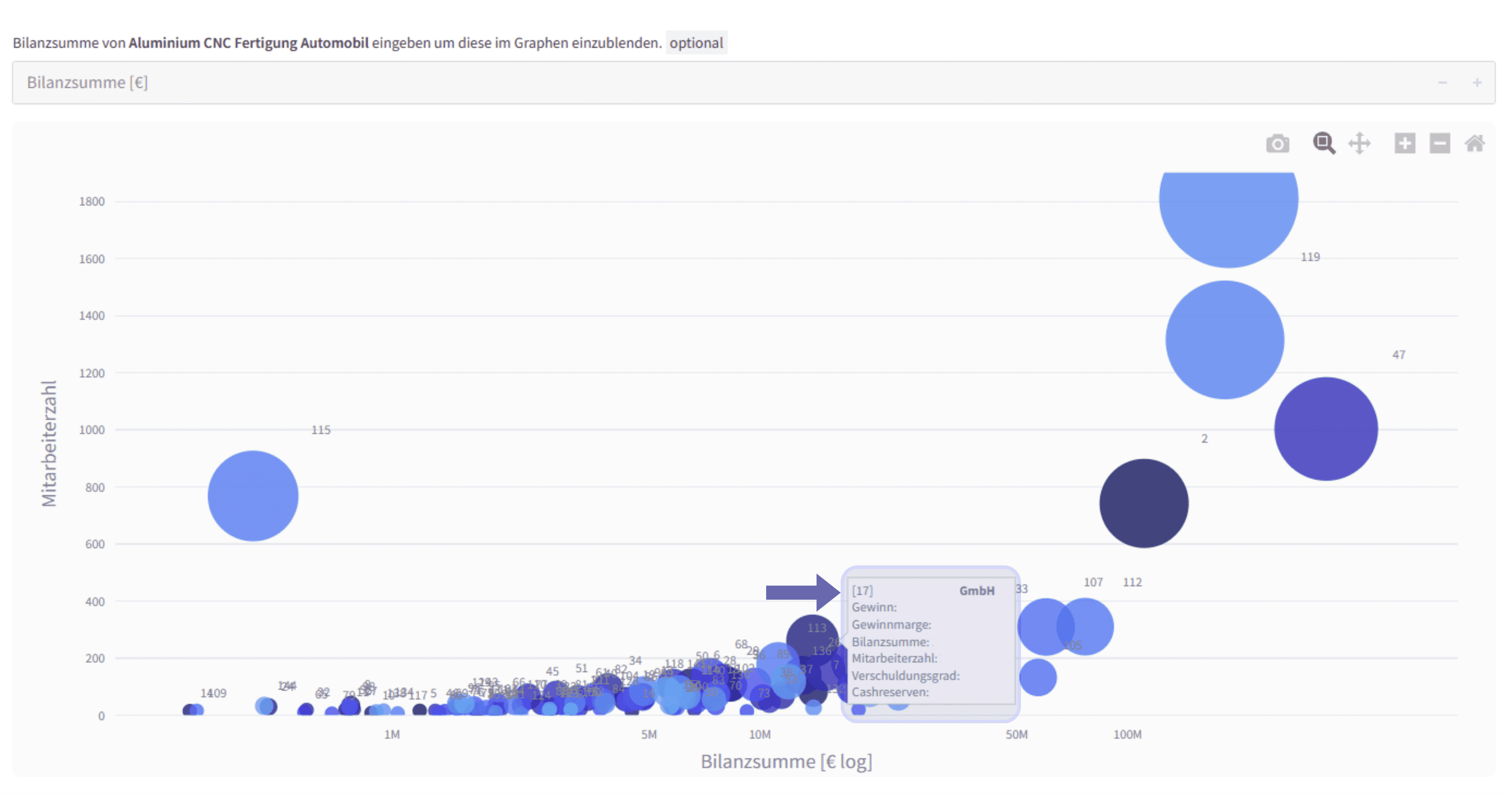
When you hover over the charts for each category, the relevant buyer or target companies are displayed together with all the metrics known to ProxDeal. The numbers above the circles correspond to each company’s position in the longlist.
Statistical breakdown by total assets
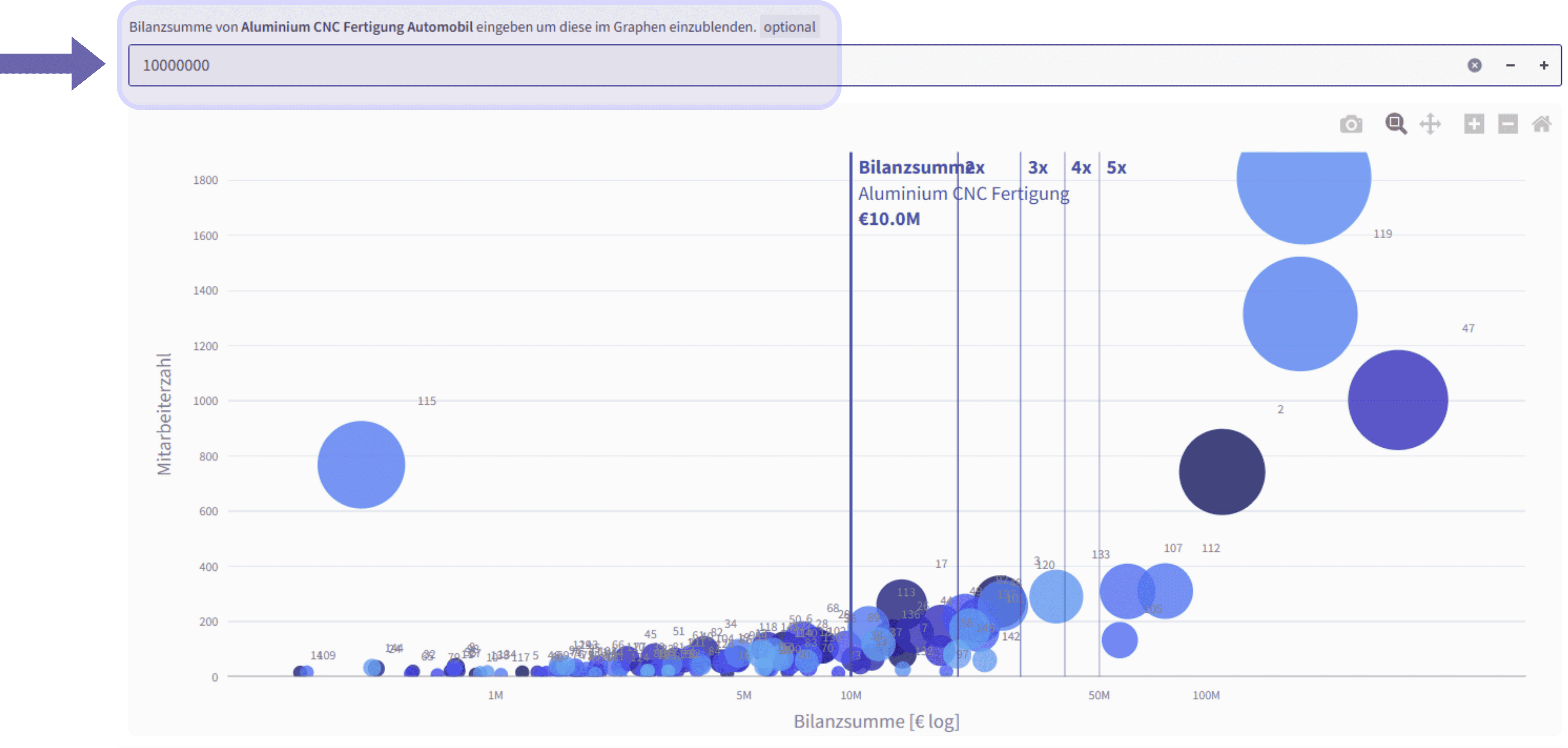
You also have the option of segmenting total assets precisely in a chart and viewing visual multiples derived from them. This makes it easier to identify and sort companies quickly and accurately by total assets.
Downloading the shortlist
Once you have set all the filters you need, you can download the longlist, together with all your settings, as a shortlist in Excel format with a single click.
Benefits of ProxDeal
ProxDeal lets you build a comprehensive, precisely matched longlist in just a few minutes, because each search is individual and context-based. There are no off-the-shelf lists – instead, you get a bespoke selection of relevant target companies, as every longlist is built from scratch and tailored to your specific details and descriptions.
Numerous flexible filter options let you sort and filter the results within minutes, both before the longlist is created and immediately afterwards. As a result, the most relevant companies are visible at a glance in a clear layout. In addition, visual and other filters support you in building your shortlist, and their detailed display gives you an excellent overview of the results.
This not only makes it easier to compare the results as effectively as possible but also pinpoints the best-fitting matches, so that you can then launch your outreach.
Book your free demo now and see all the benefits for yourself.
Stay ahead
 Stay ahead
Discover what ProxDeal PRO can do.
ProxDeal is built specifically for the DACH M&A market. Give yourself a decisive competitive edge – starting today.

Related articles
Tutorials
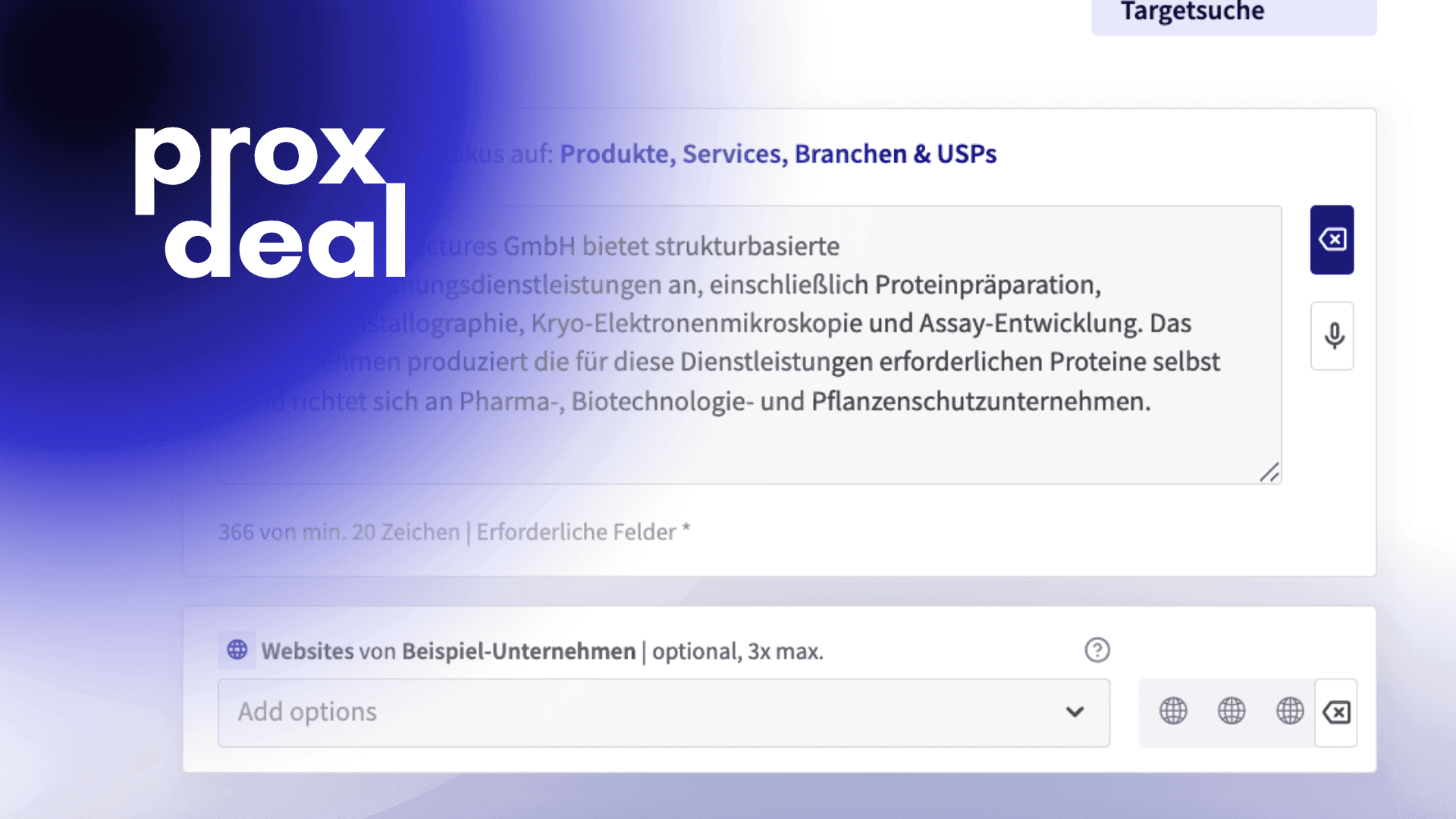
Writing precise prompts
How the right short description determines the quality of your longlist.
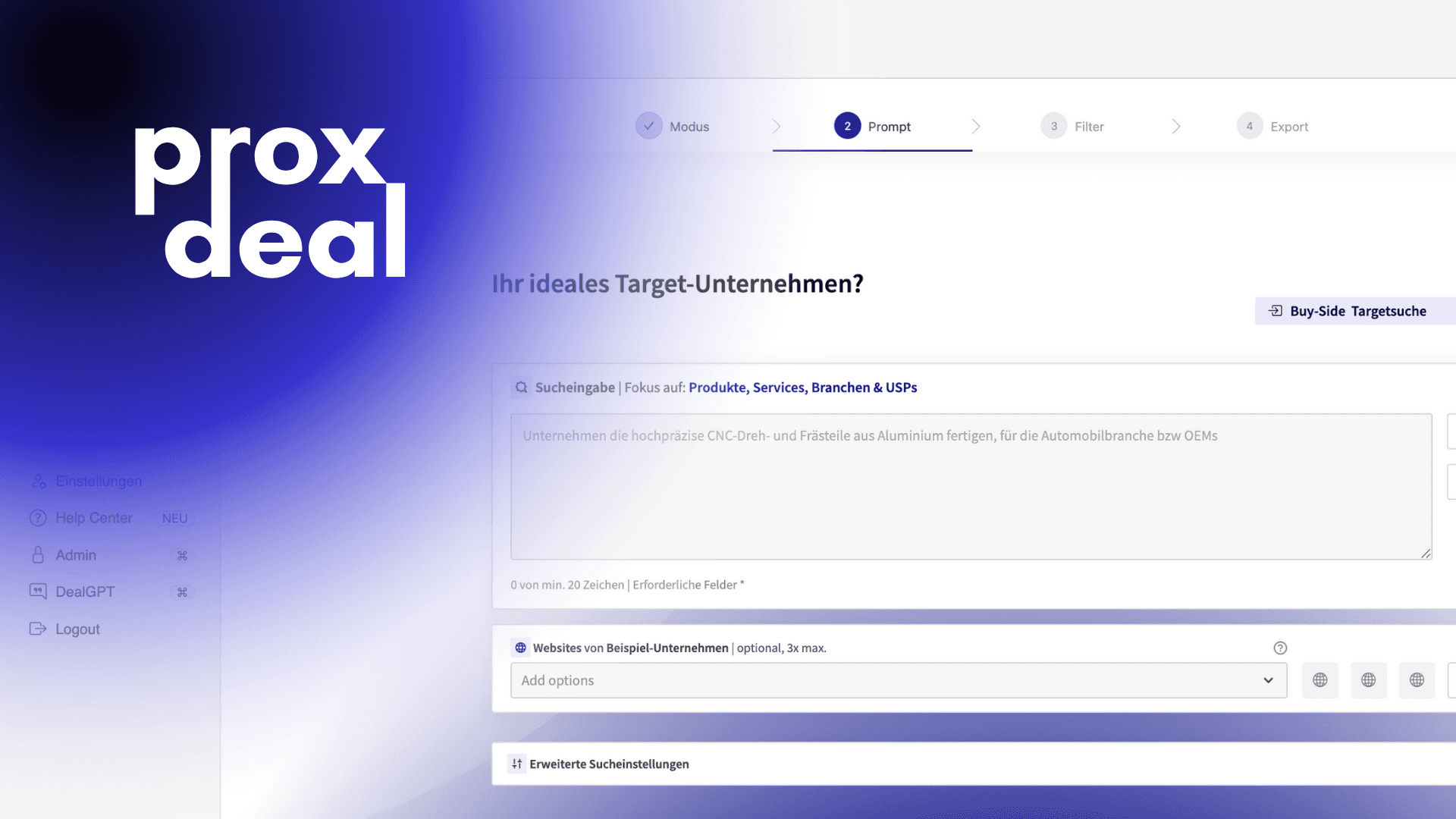
Tutorials
How to create buy-side longlists
A step-by-step guide to creating a buy-side longlist in ProxDeal, from entering your search criteria to exporting the results to Excel.
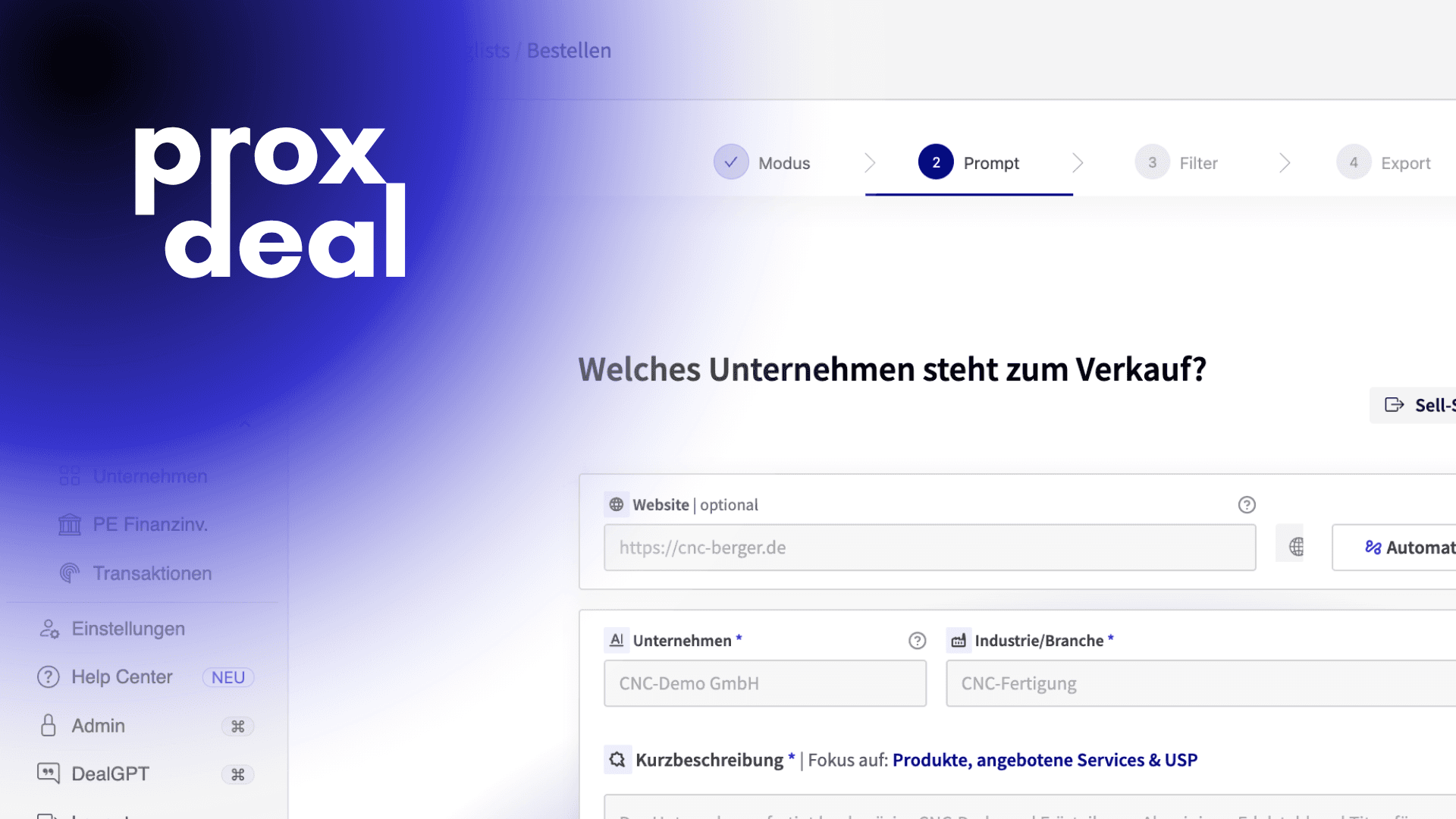
Tutorials
How to create sell-side longlists
Systematically find and export strategic buyers and financial investors.